
Table of Contents
This guide will help you connect Google Custom Search with AI Content Labs so you can leverage its web search capabilities within the platform.
Step 1: Access Google Programmable Search Engine
Go to the Google Programmable Search Engine website (https://programmablesearchengine.google.com/about/) and log in with your Google account.

Step 2: Create your programmable search engine and get the Engine ID
Once inside the platform, follow these steps to create your search engine and obtain the Engine ID:
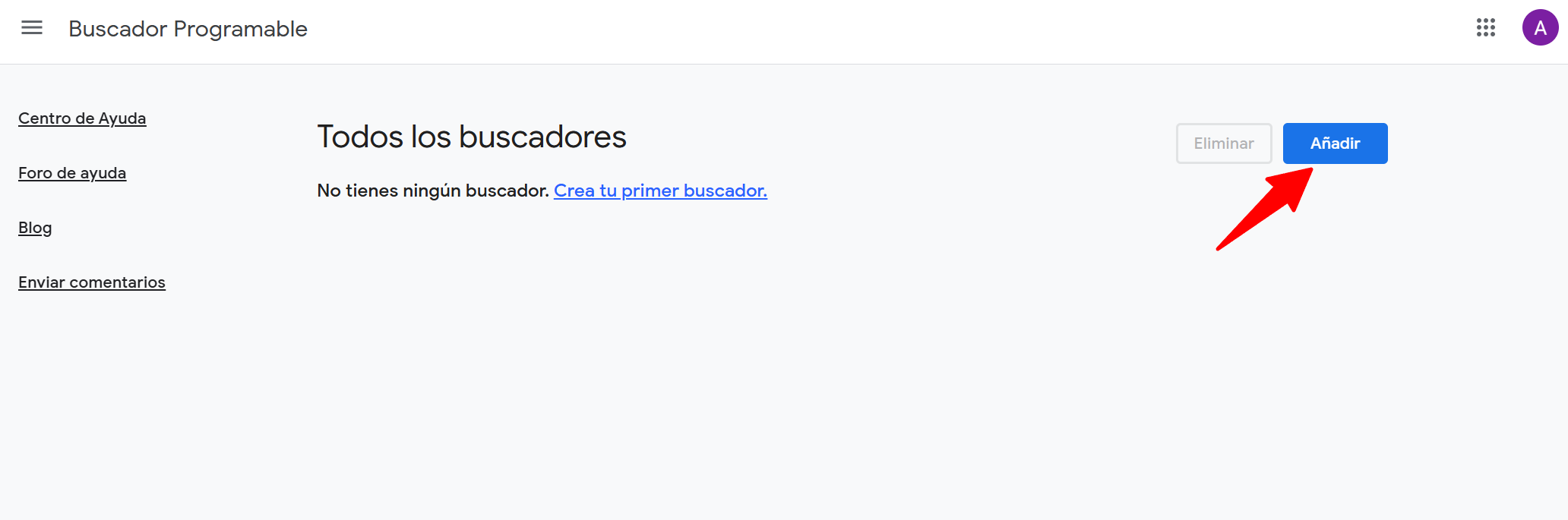
- Click on the “Add” button.
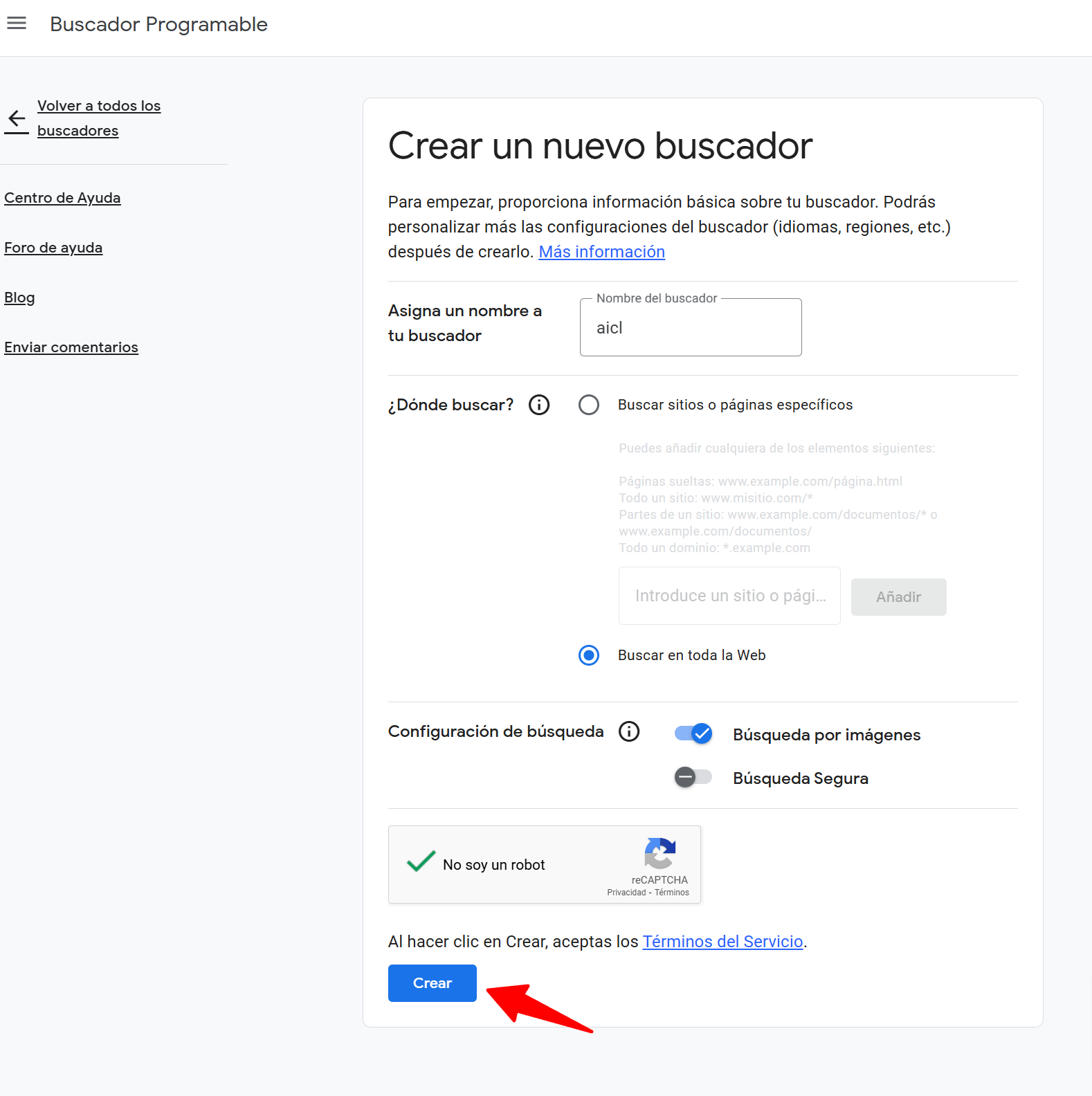
- Assign a name to your search engine (e.g., “AICL”).
- Select the scope of your search. You can search specific sites or pages or the entire web.
- Configure the search options according to your needs (image search, safe search, etc.).
- Complete the reCAPTCHA and click on “Create”.
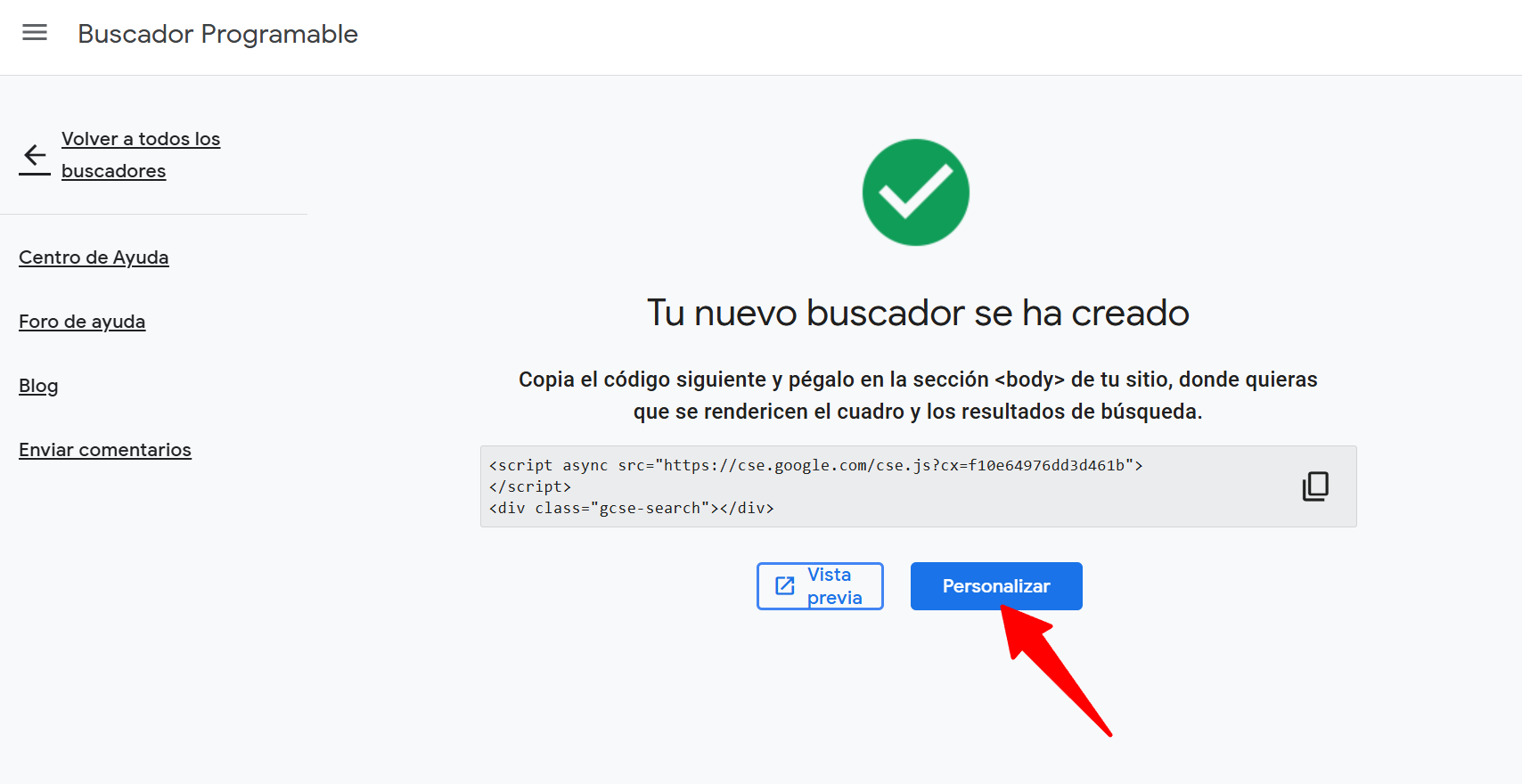
- On the next page, click on “Customize”.
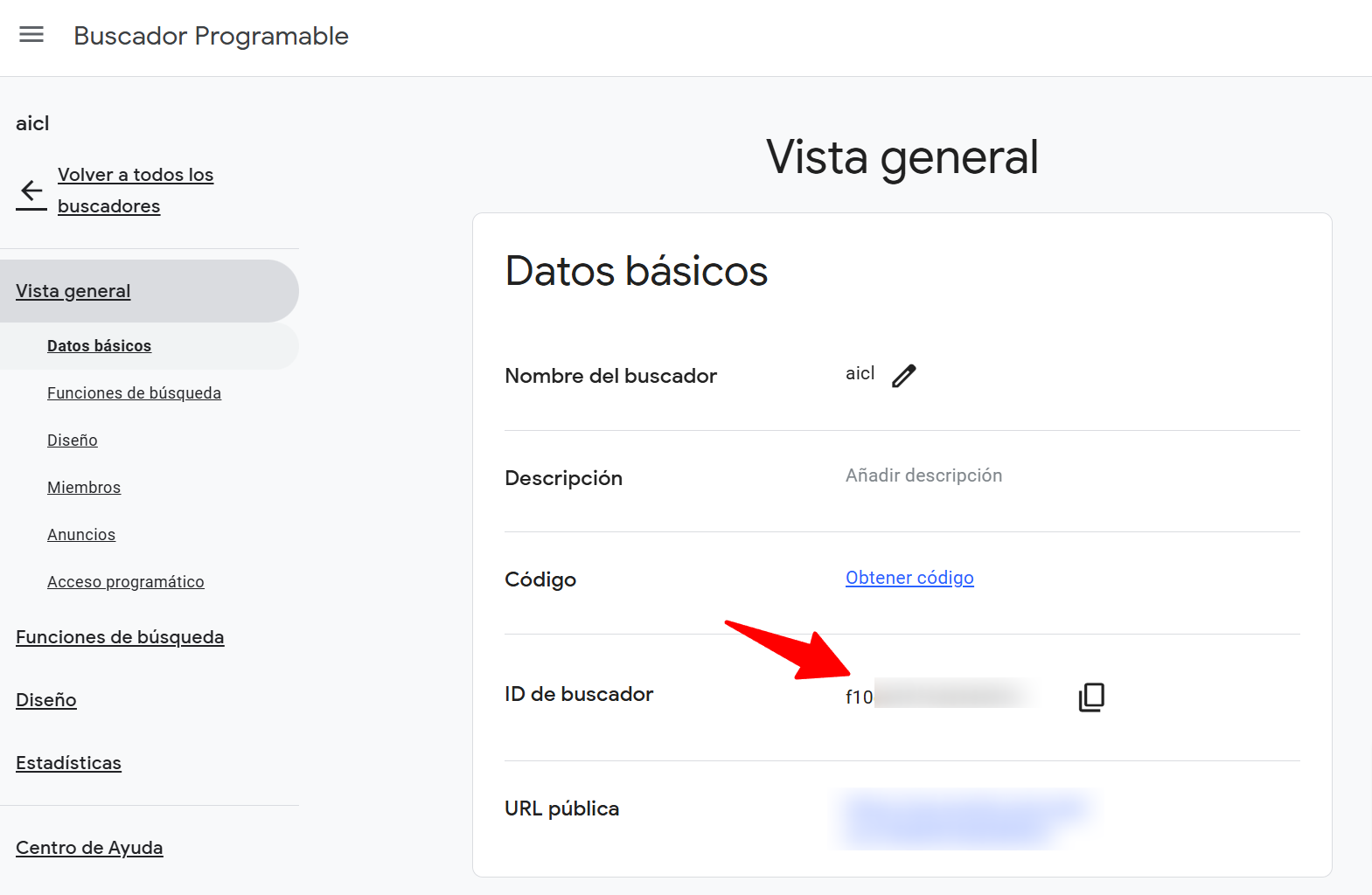
- In the “Overview” section, locate the “Search Engine ID” and copy it. Save it in a secure location, as you will need it later.
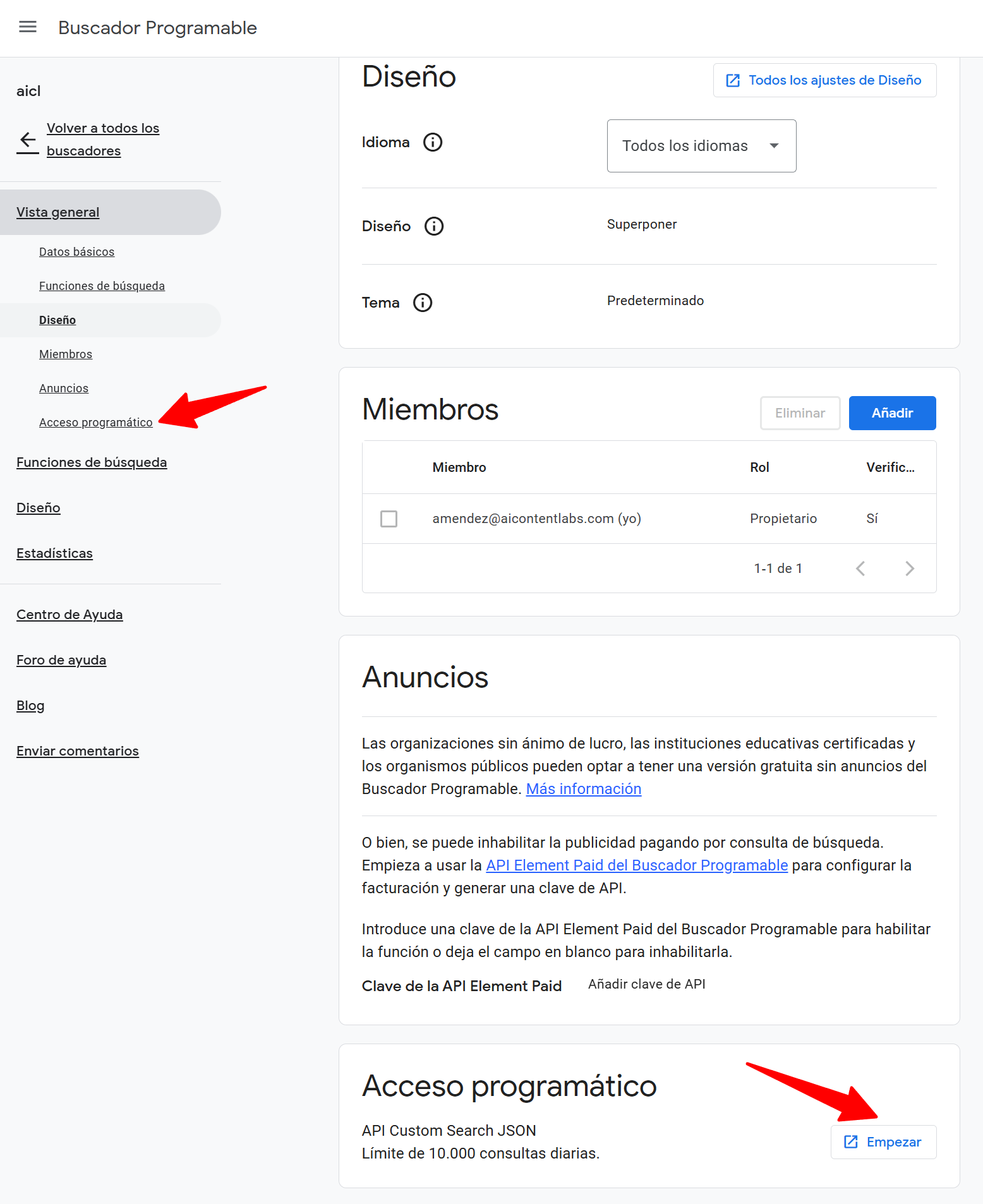
Step 3: Get your API Key
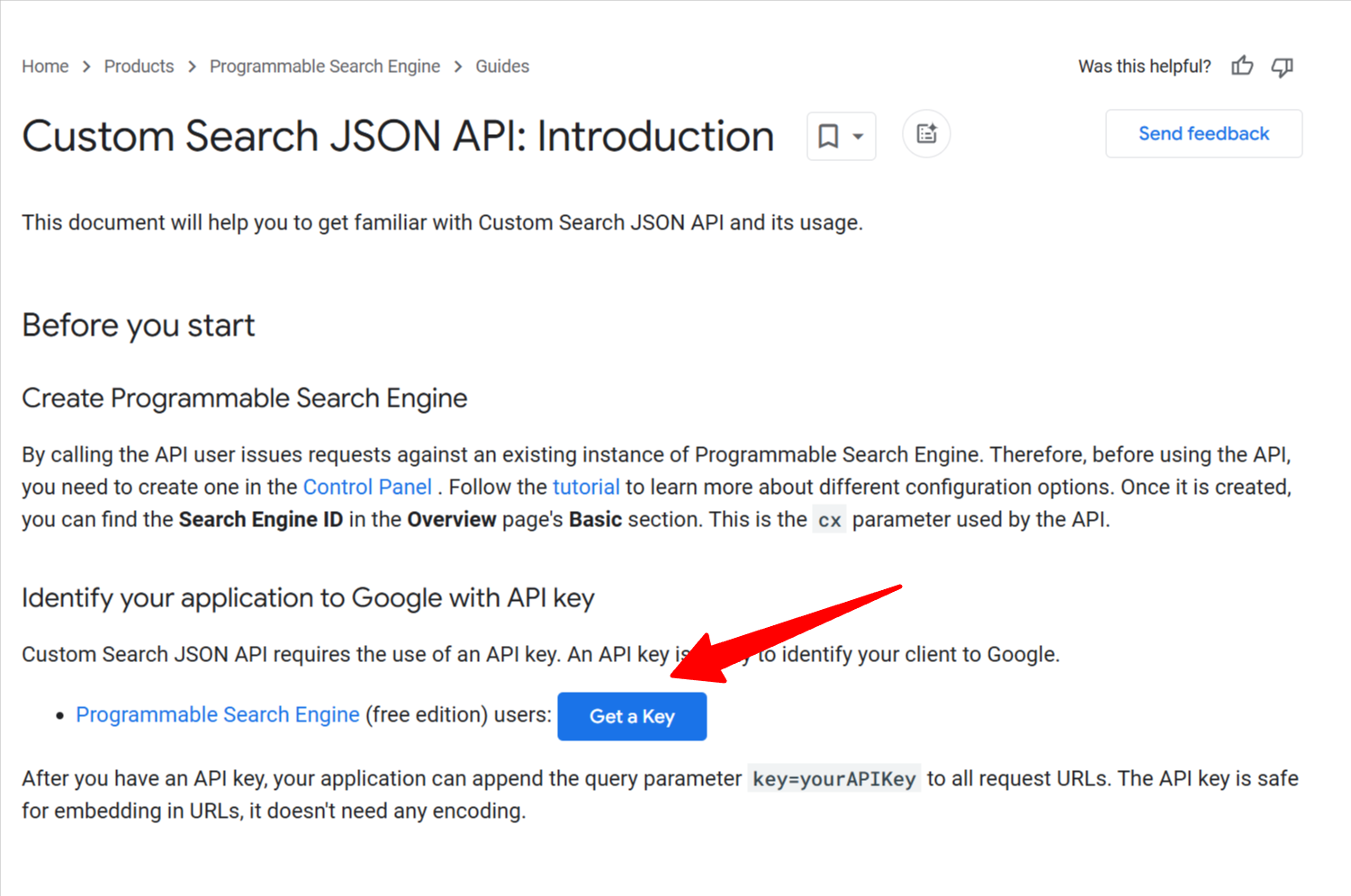
- Go to the Google Custom Search API page (https://developers.google.com/custom-search/v1/introduction).
- Click on “Get a Key”.
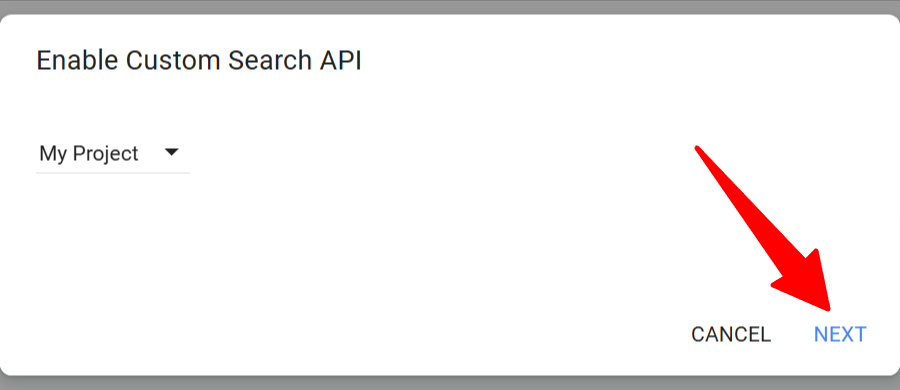
- Select your project and click on “Next”.
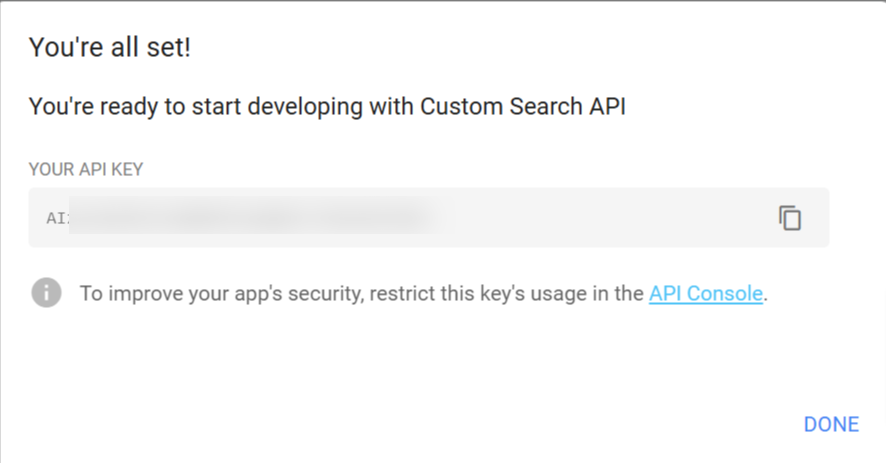
- Copy the API Key you are provided. Save it in a secure location, as it will not be shown again.
Step 4: Connect Google Custom Search with AI Content Labs
- Log in to your AI Content Labs account.
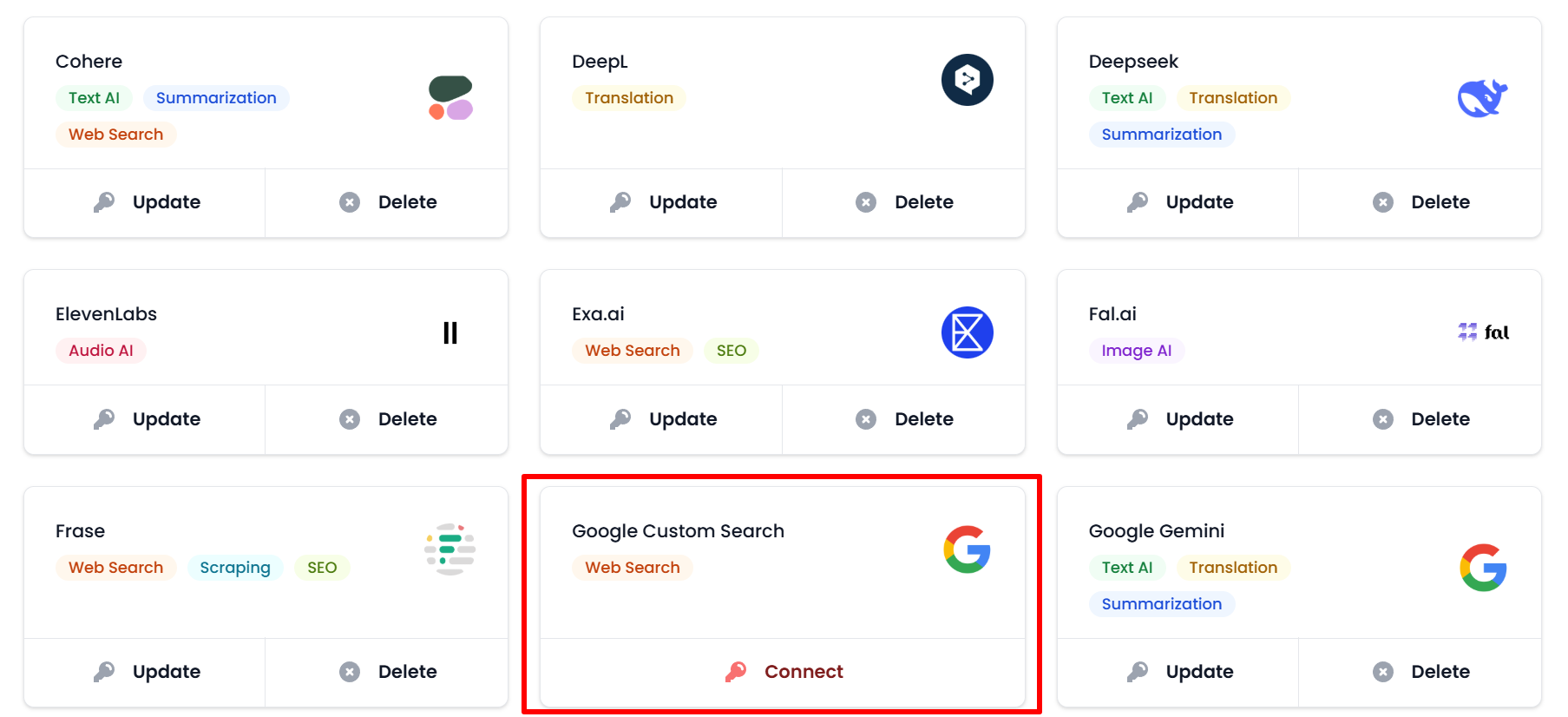
- In the user menu located at the bottom left, select “Configure API Keys”.
- Locate the Google Custom Search card.
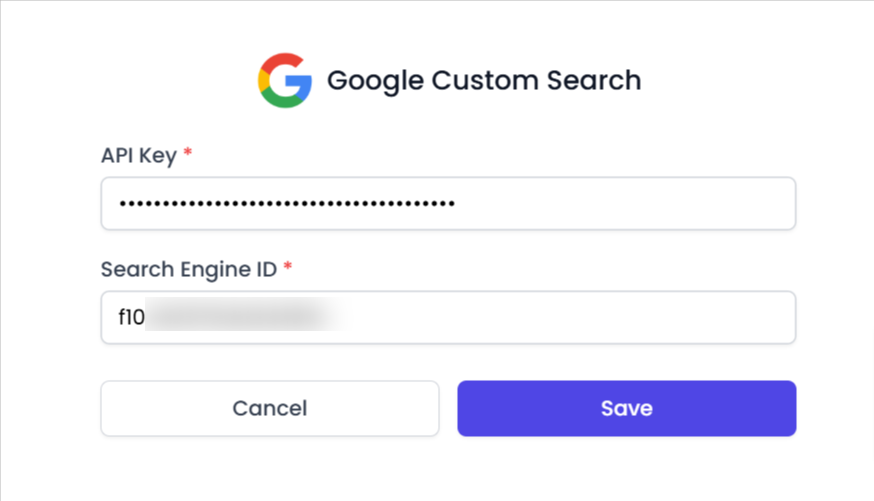
- Paste the API Key and Engine ID you copied in the previous steps into the corresponding fields.
- Click on “Save”. If the information is valid, Google Custom Search will connect successfully. If there is any error, you will receive a message with additional information.

Once this process is completed, you will be able to use Google Custom Search within AI Content Labs. If you need assistance, contact our technical support team.


