
The AI Audio node in AI Content Labs lets you generate audio files from text or create transcriptions from a sound file. This article explains its main features and settings in detail, so you can seamlessly integrate it into your workflows.
What is the AI Audio node and what is it for?
The AI Audio node converts the text it receives into a temporarily hosted sound file (the resulting URL will be available for 7 days). It can also, with some models, recognize audio and transcribe it to text.
In complex flows, it’s common to use a Prompt node to generate text and then send it to the AI Audio node, obtaining a spoken response. Similarly, you could use it along with a Text Splitter node to divide the content and generate multiple audio files.
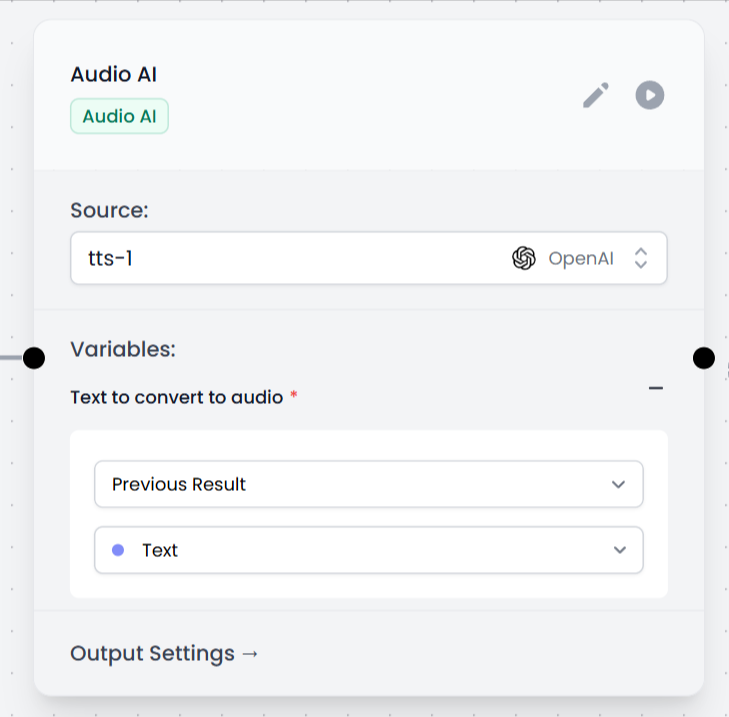
Settings
Each AI provider offers different models and parameters. You can consult this list of available AI Audio models to know which options are enabled on the platform. The following describes the settings you’ll find when you open the node configuration:
Select source (Source)
In the Source field, you choose the service and the specific model you want to use. Common examples include:
- OpenAI (tts-1, tts-1-hd, whisper-1)
- Eleven Labs.
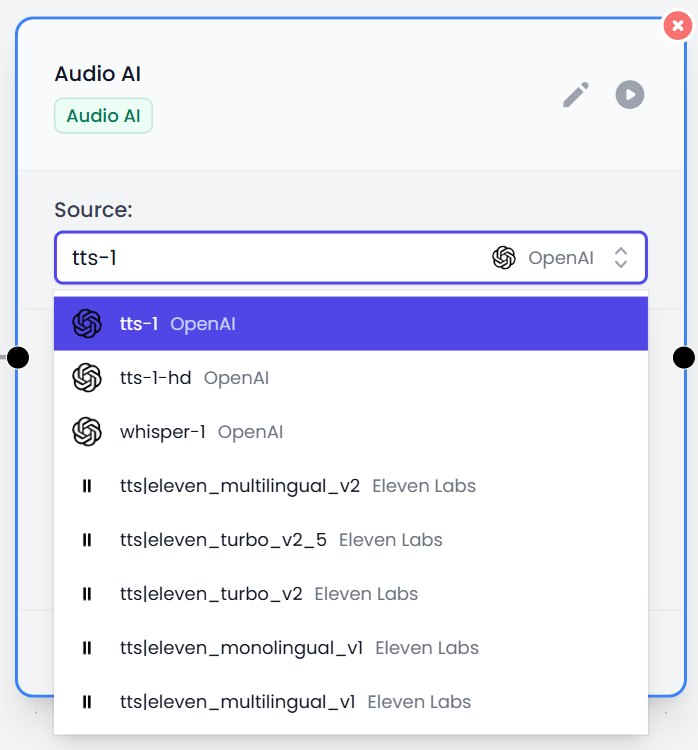
Voice and output format settings
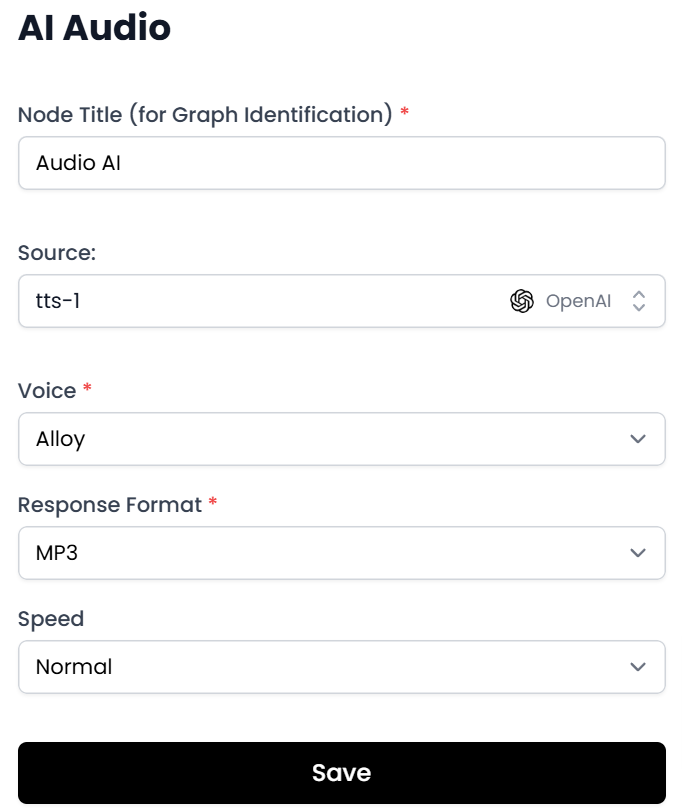
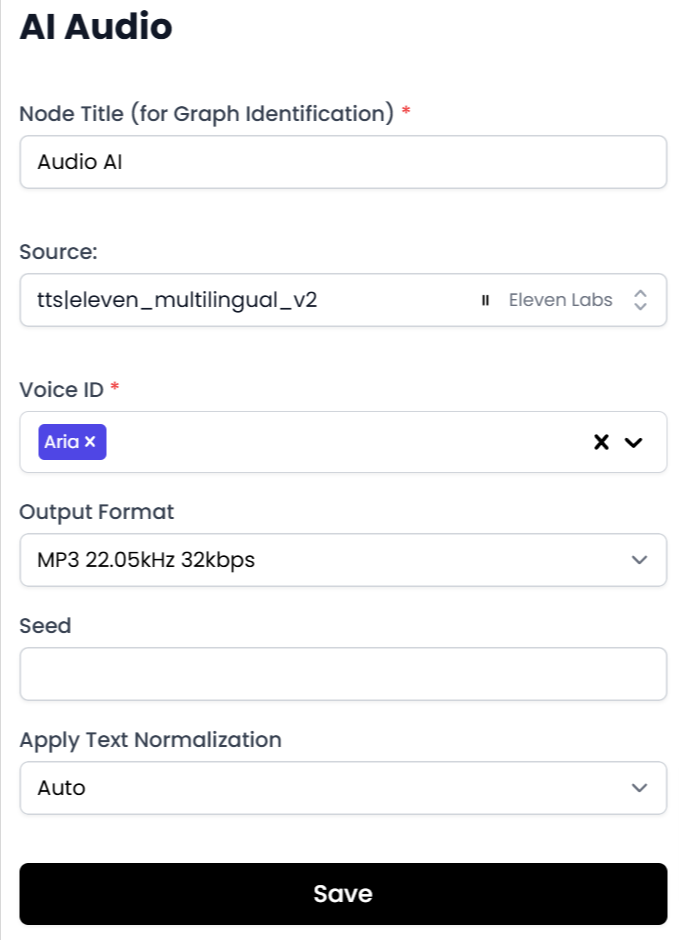
Depending on the chosen model, you’ll see options such as:
- Voice / Voice ID: The name or ID of the selected voice (for example, “Alloy”, “Aria” or any custom voice).
- Response Format / Output Format: The output file type (for example, MP3, WAV).
- Speed or Apply Text Normalization: Speed at which the voice is played and automatic text modifications (such as removing unnecessary punctuation).
Usage tips
- Use with other nodes: You can chain a Prompt node to generate the text and then convert it to audio with the AI Audio node. If you want to create multiple audios, you could use a Text Splitter node beforehand to divide the text into more manageable parts.
- Output formats: If you are going to publish audios on your website, MP3 is usually the best option due to its compatibility. For more advanced editing applications, WAV can give you higher quality.
- Customize voices: Many models offer voices with different accents or speeds. Adjust these parameters according to the needs of the project or the preference of your audience.
- URL validity: Once the audio is generated, the download path is temporary. If you need to store it permanently, download the file or use a hosting service.
- Consider transcription: Some models (such as whisper-1) are used to transform audio into text. This is useful if you want to generate subtitles or a narrated summary along with your flow.
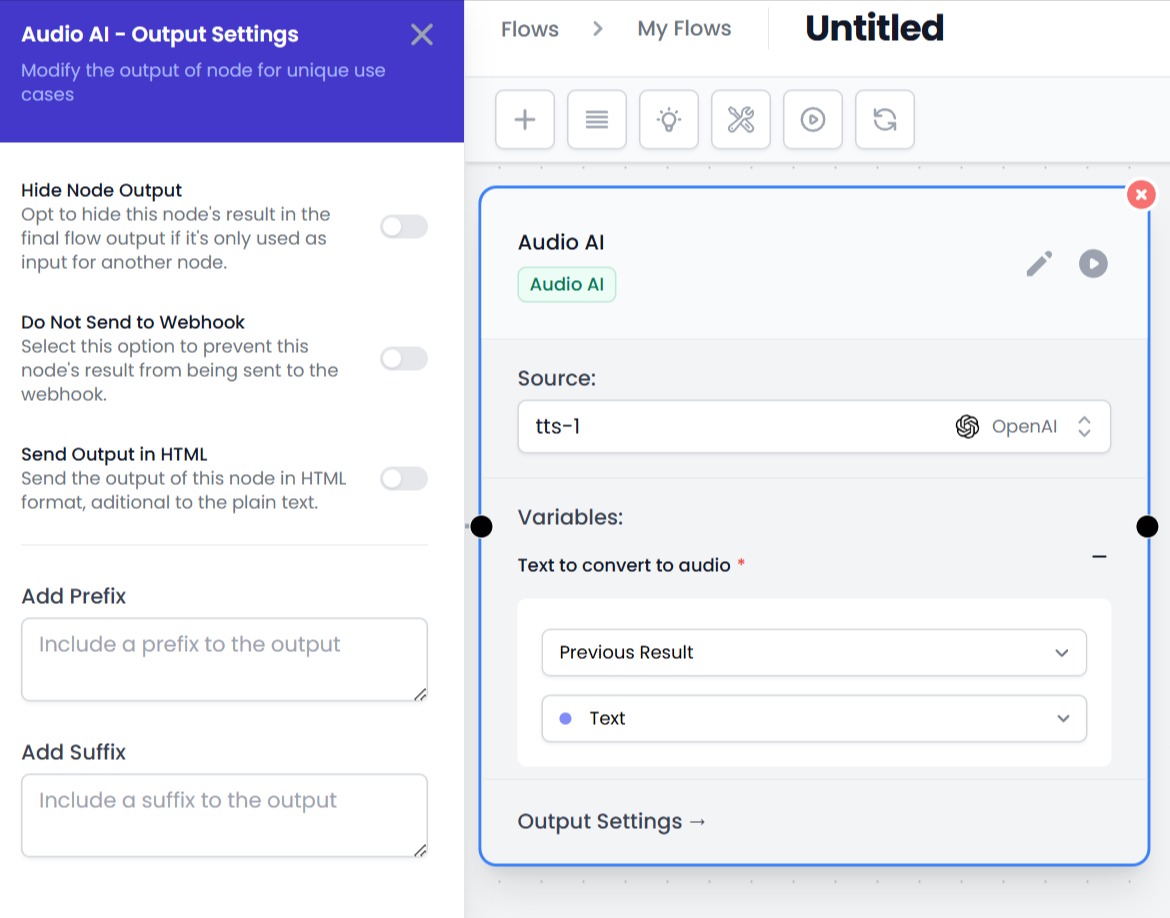
Finally, remember that the Output Settings (hide final output, do not send to webhook, etc.) are general settings available in almost all nodes. Use them as you see fit, but they do not influence the basic functionality of audio generation or transcription.
By combining this node with others in your flow, you will have the possibility to produce voice content in different languages and with different nuances, take advantage of text modules to generate more dynamic content and, ultimately, personalize the user experience in a very flexible way.
With the AI Audio node, transforming text into audio or transcribing it has never been easier. Experiment with the different parameters and models to find the combination that best suits your projects.


