
Table of Contents
This article will guide you to connect the Leonardo.ai API key in AI Content Labs.
Step 1: Access your Leonardo.ai account
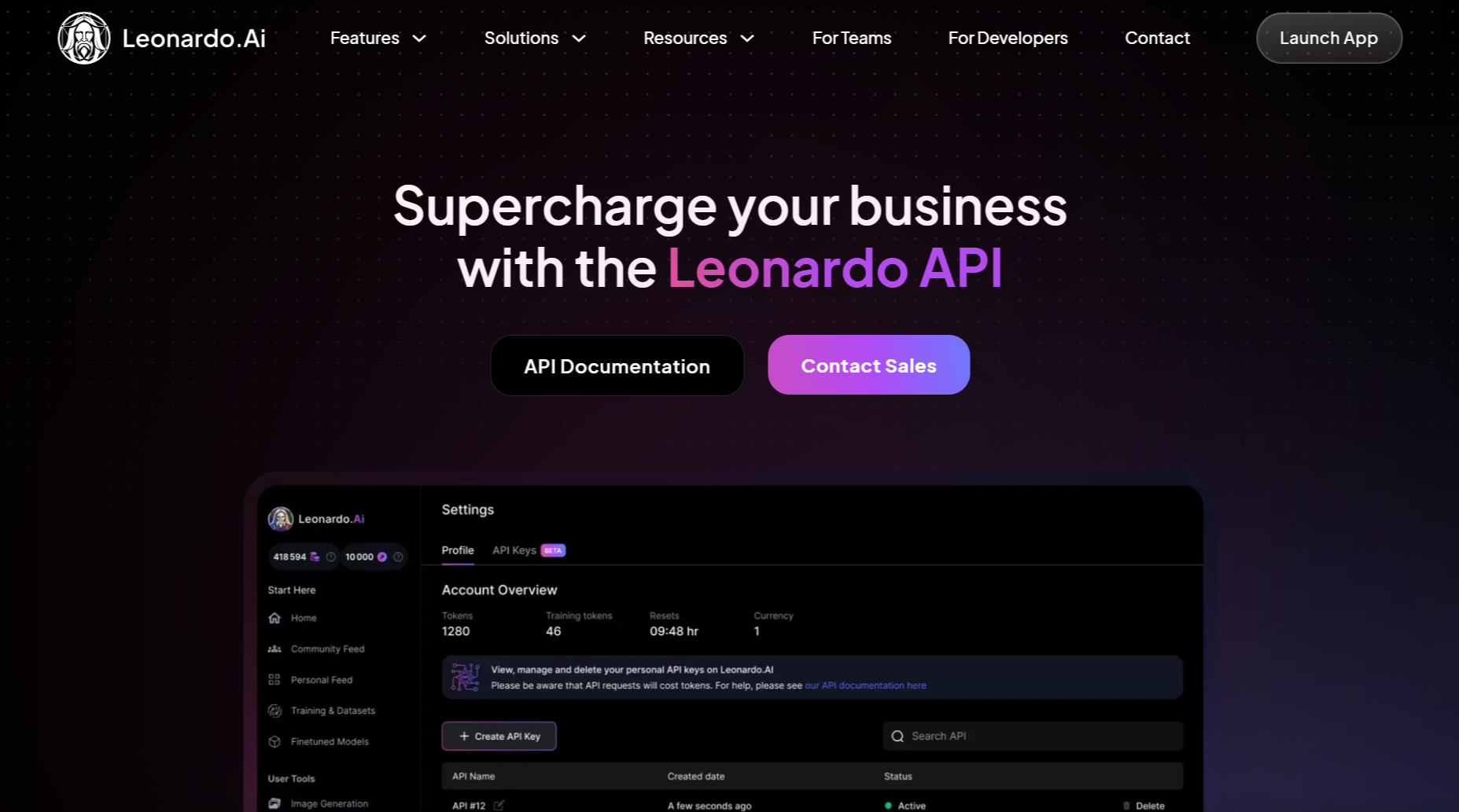
- Go to https://leonardo.ai/api/.
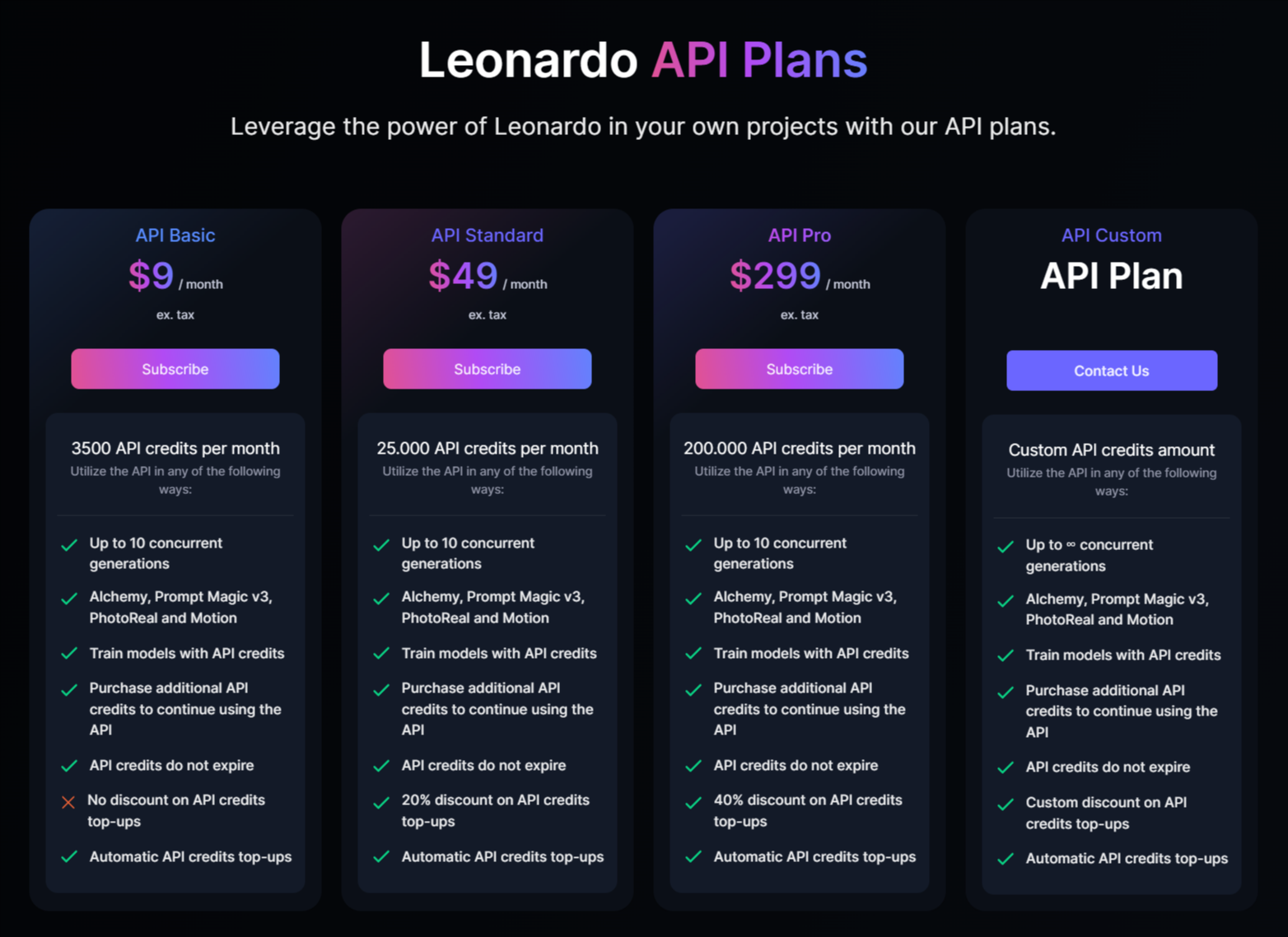
- If you already have an account, log in. Otherwise, create an account by following the on-screen instructions. You must subscribe to any available plan.
Step 2: Obtain the Leonardo.ai API key
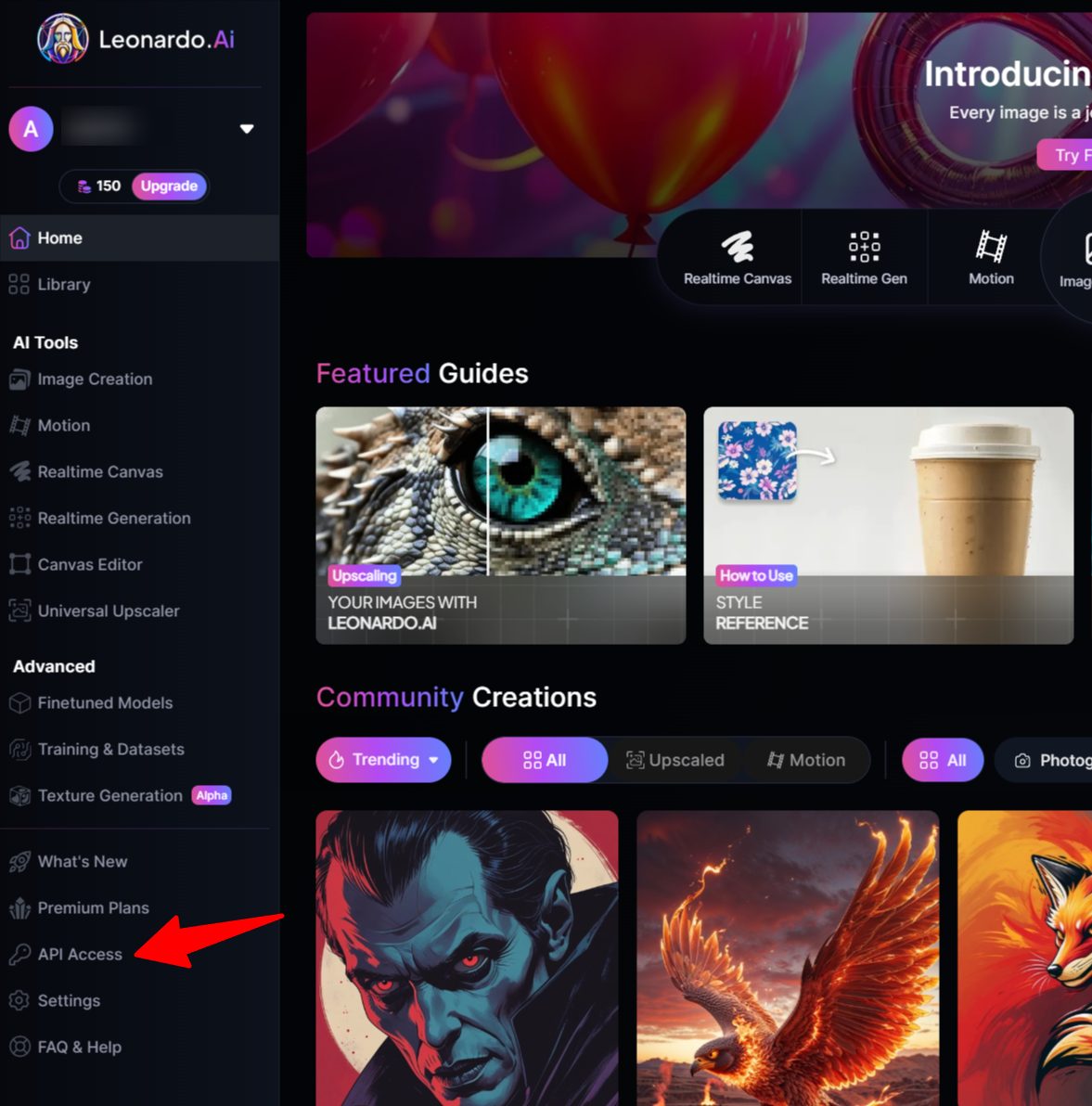
- Once inside the platform, open the left-hand side menu.
- Select the “API Access” option.
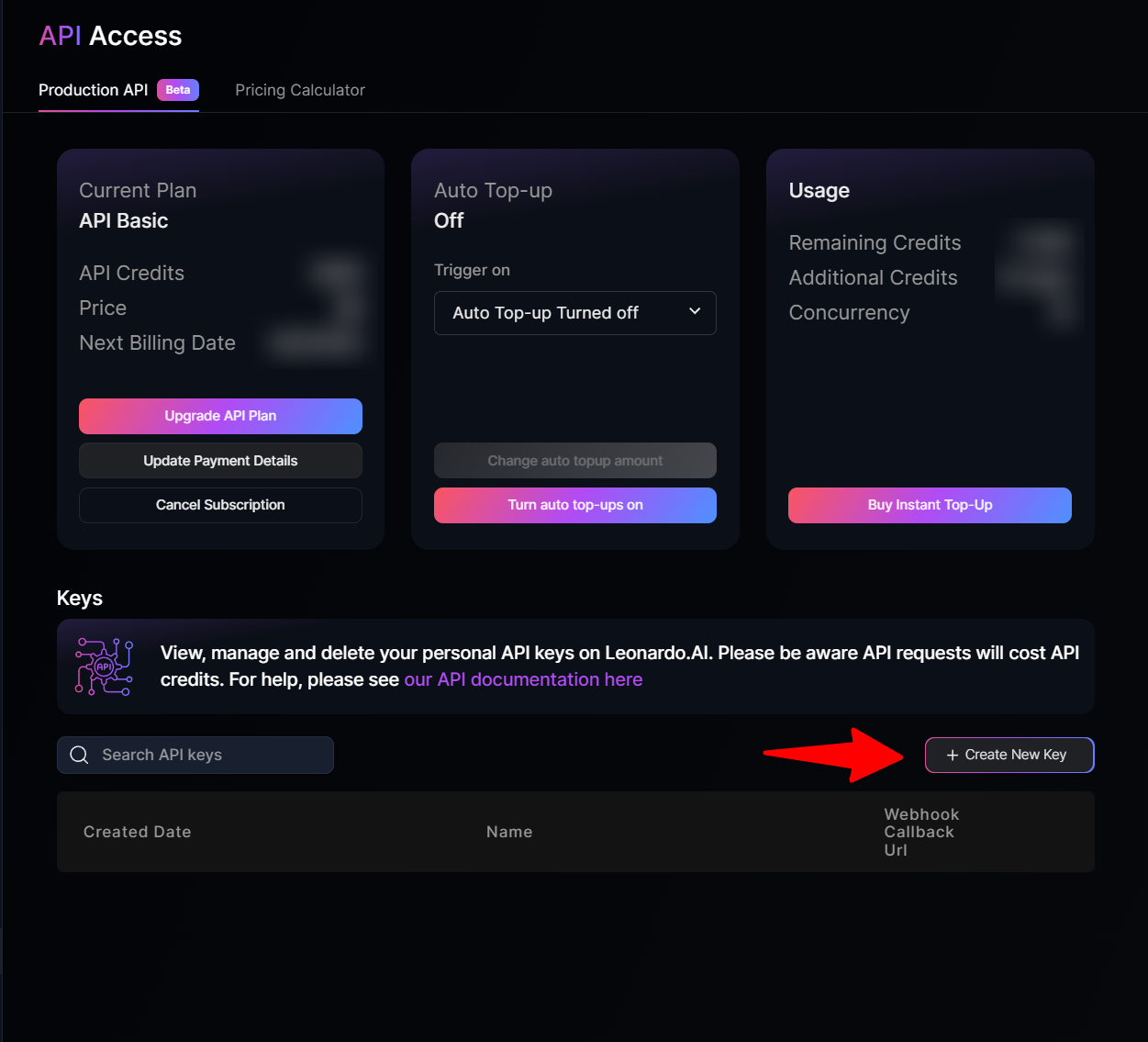
- On the API Access page (https://app.leonardo.ai/api-access), click on “Create New Key.”
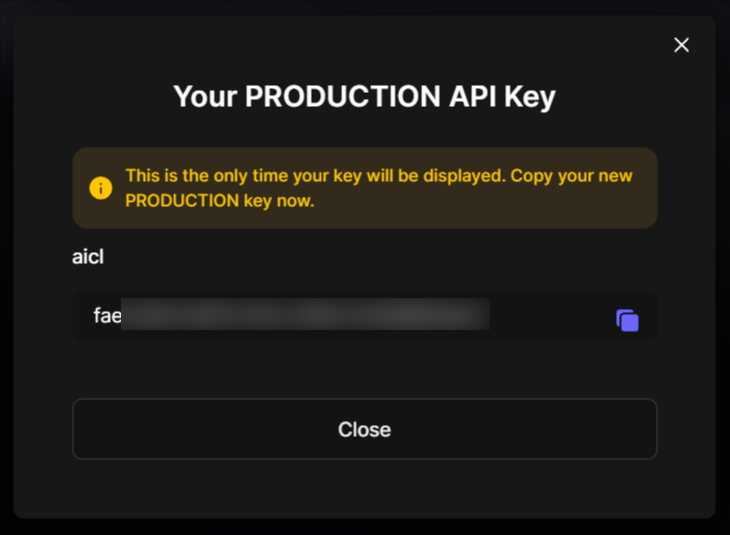
- Copy the generated API key. Save it in a secure place, as you will need it in the next step.

Step 3: Enter the API key in AI Content Labs
- Log into your AI Content Labs account.
- At the bottom left of the screen, click on the user menu.
- Select “Set Up API Keys.”
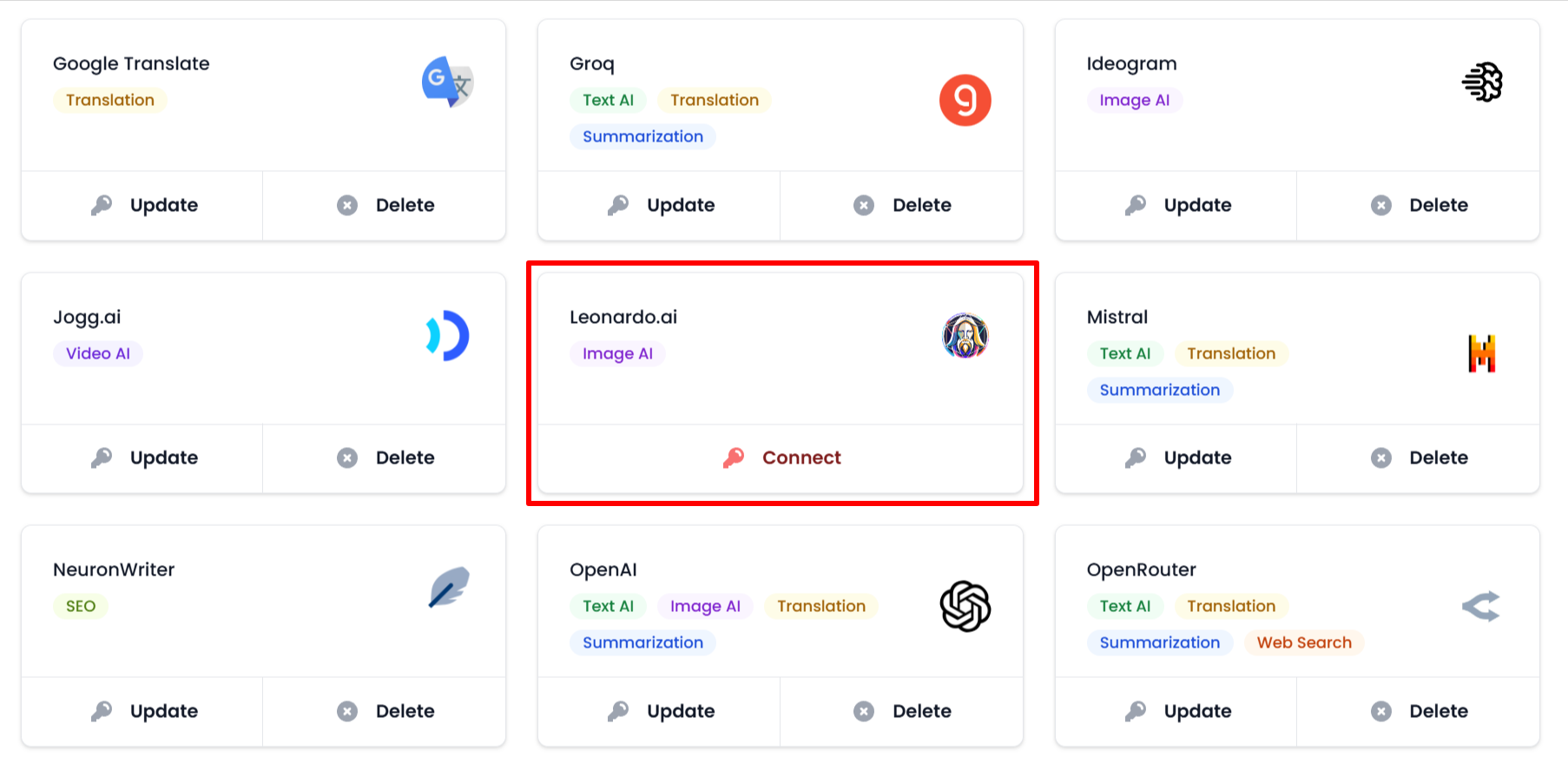
- Locate the Leonardo.ai card.
- Click on “Connect.”
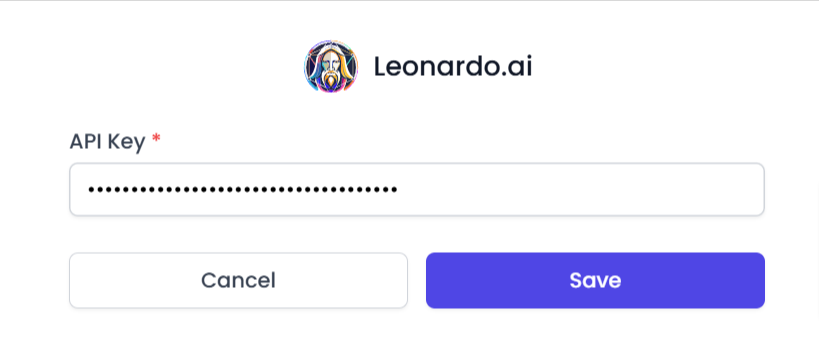
- Paste the copied API key into the corresponding field.
- Click on “Save.”
- You can view the complete list of Leonardo.ai models compatible with AI Content Labs here.

That’s it! You’ve integrated Leonardo.ai with AI Content Labs. If you encounter any issues, contact our support team.


