
Table of Contents
This guide will help you connect ElevenLabs with AI Content Labs to harness its AI-powered audio generation capabilities.
Step 1: Access Your ElevenLabs Account
Go to the ElevenLabs website (https://elevenlabs.io/) and log in. If you don’t have an account, sign up by following the instructions.
Step 2: Generate Your ElevenLabs API Key
Once inside the platform, follow these steps:
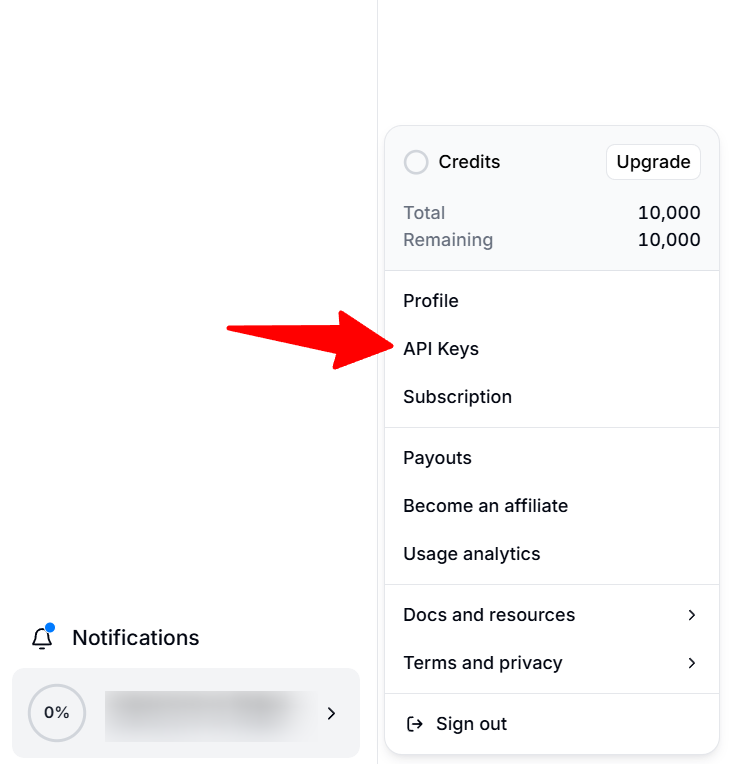
- Click on your profile picture in the bottom-left corner of the screen.
- From the dropdown menu, select “API Keys”. This will take you to the API settings page: https://elevenlabs.io/app/settings/api-keys.
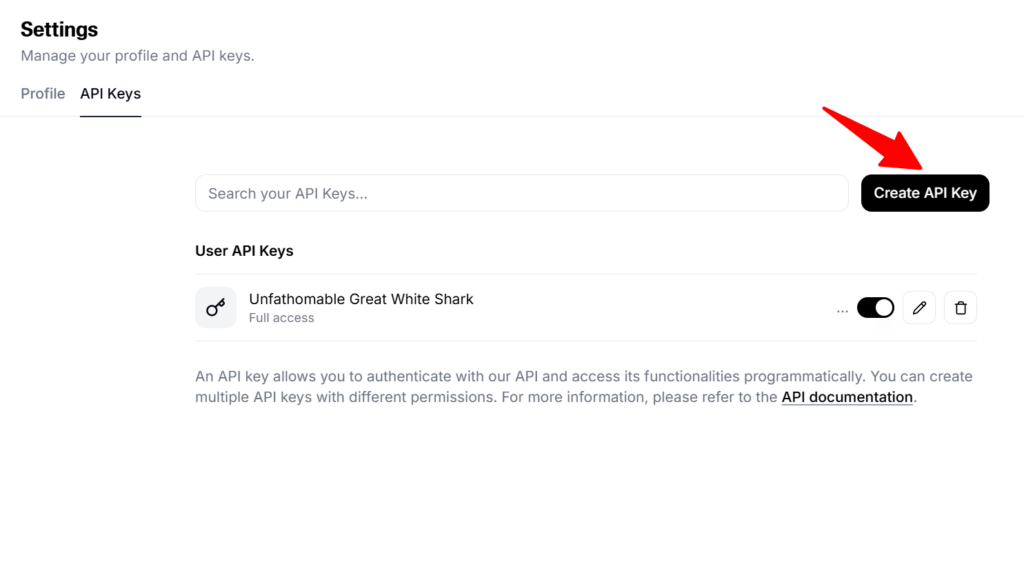
- Click on “Create API Key”.
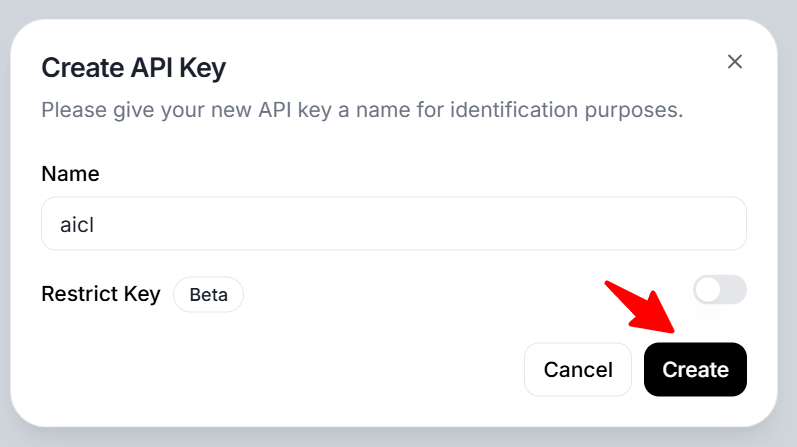
- In the pop-up window, assign a name to your API key (e.g., “AICL”) in the “Name” field. This will help you identify the key later.
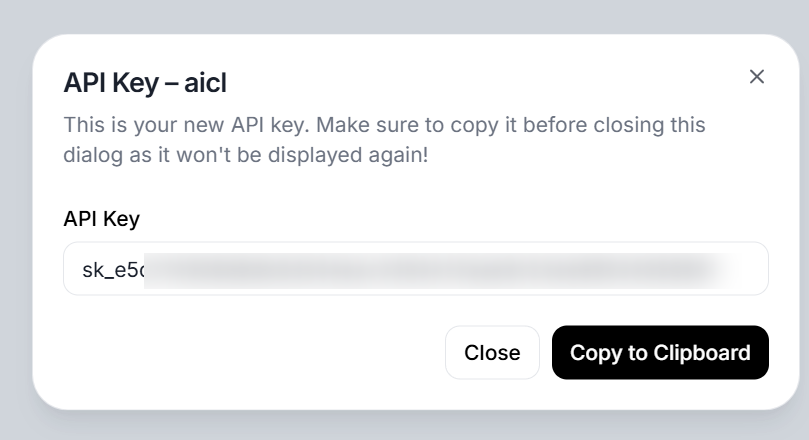
- Click “Create”. A new window will display your API key. Important: Copy this key immediately, as it won’t be shown again. Use the “Copy to Clipboard” button for convenience. Save it in a secure location.
Step 3: Enter the API Key in AI Content Labs
- Log in to your AI Content Labs account.
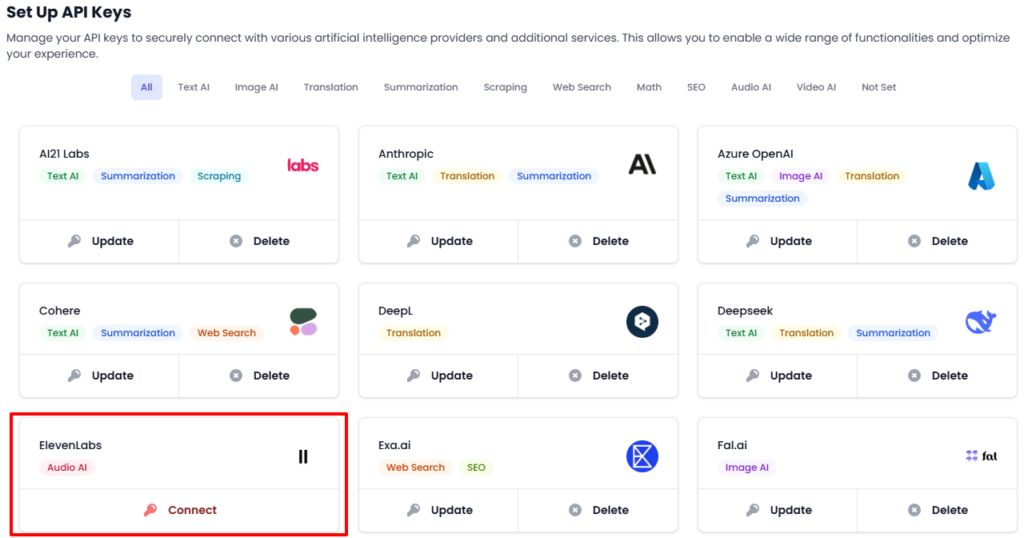
- In the user menu located at the bottom-left corner, select “Set Up API Keys”.
- Locate the ElevenLabs card.
- Paste the API key you copied in the previous step into the corresponding field.
- Click “Save”. If the key is valid, ElevenLabs will connect successfully. If an error occurs, you’ll see a message with additional details.


Once this process is complete, you can use ElevenLabs within AI Content Labs. If you need assistance, contact our technical support team.


