
In this article, you will discover how to leverage the Fixed Text node to add flexibility and uniformity to your flows in AI Content Labs. You will see how this node allows you to reuse text snippets and combine variables to create consistent and fully personalized results.
What is the Fixed Text node and what is it for?
The Fixed Text node is a tool that allows you to place fixed or “static” text within your flow. Although the word “fixed” suggests that it does not change, it is actually very versatile, since you can include variables between curly brackets (for example, {myVariable}) to inject dynamic content from other nodes.
Some key applications:
- Reuse the same text in various parts of the flow (for example, an introductory message or a block of text that you don’t want to rewrite all the time).
- Add text sections containing variables to display results from other nodes in a unified format.
- Insert “prefixed” or “suffixed” texts (such as titles or subtitles) before displaying the final result.
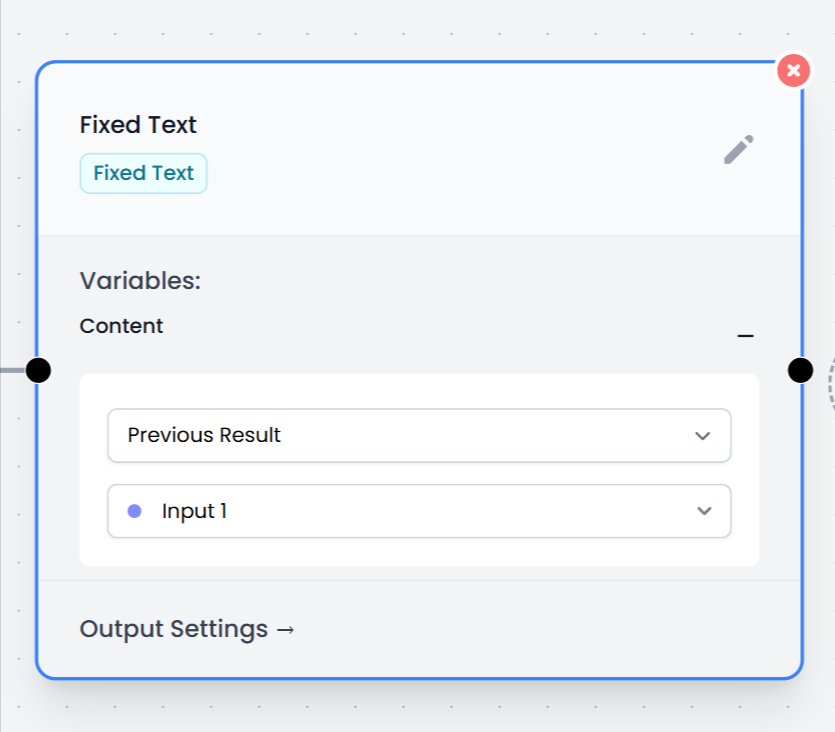
Below is an overview of how the node looks in the flow panel:
Configurations
In the node configuration, you will find several elements that allow you to customize its behavior:
Node Title
This is the name you will see within your flow diagram.
Text Section
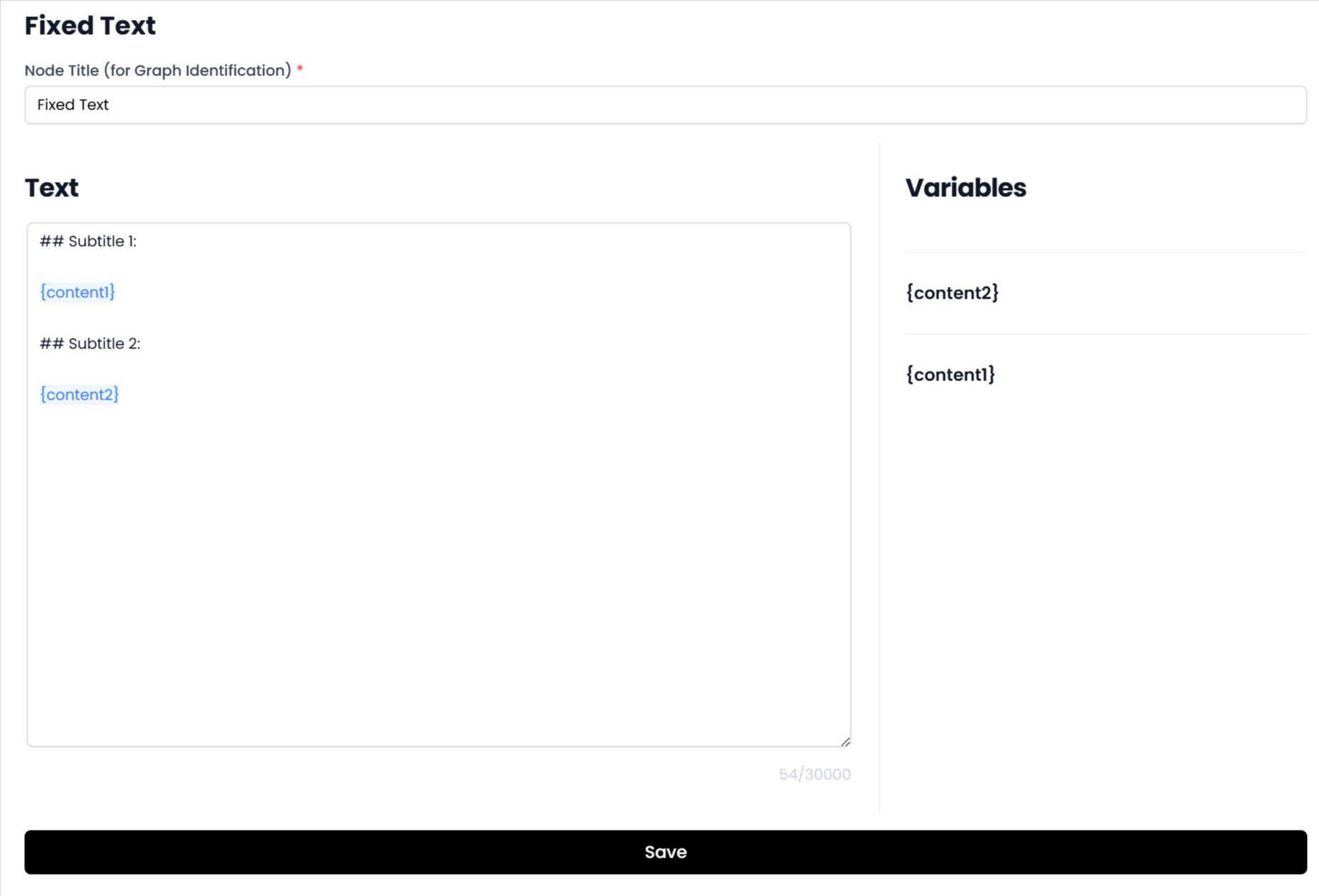
Here you define the text that will be used. You can write it freely or formatted in Markdown. In addition, you can include variables by enclosing them in curly brackets. For example:
## Main Title
This is a block of content generated with {anotherVariable}.
Observe in the following image how this section is presented:
Variables
On the right side (or bottom, depending on your screen) you will see the list of variables that you have written in the text section; in turn, the node will suggest that you link them with the results of other nodes (for example, an Input node, or the output of a Prompt node).
Thus, when your flow is executed, each variable will be replaced with the information obtained previously.
Output Settings
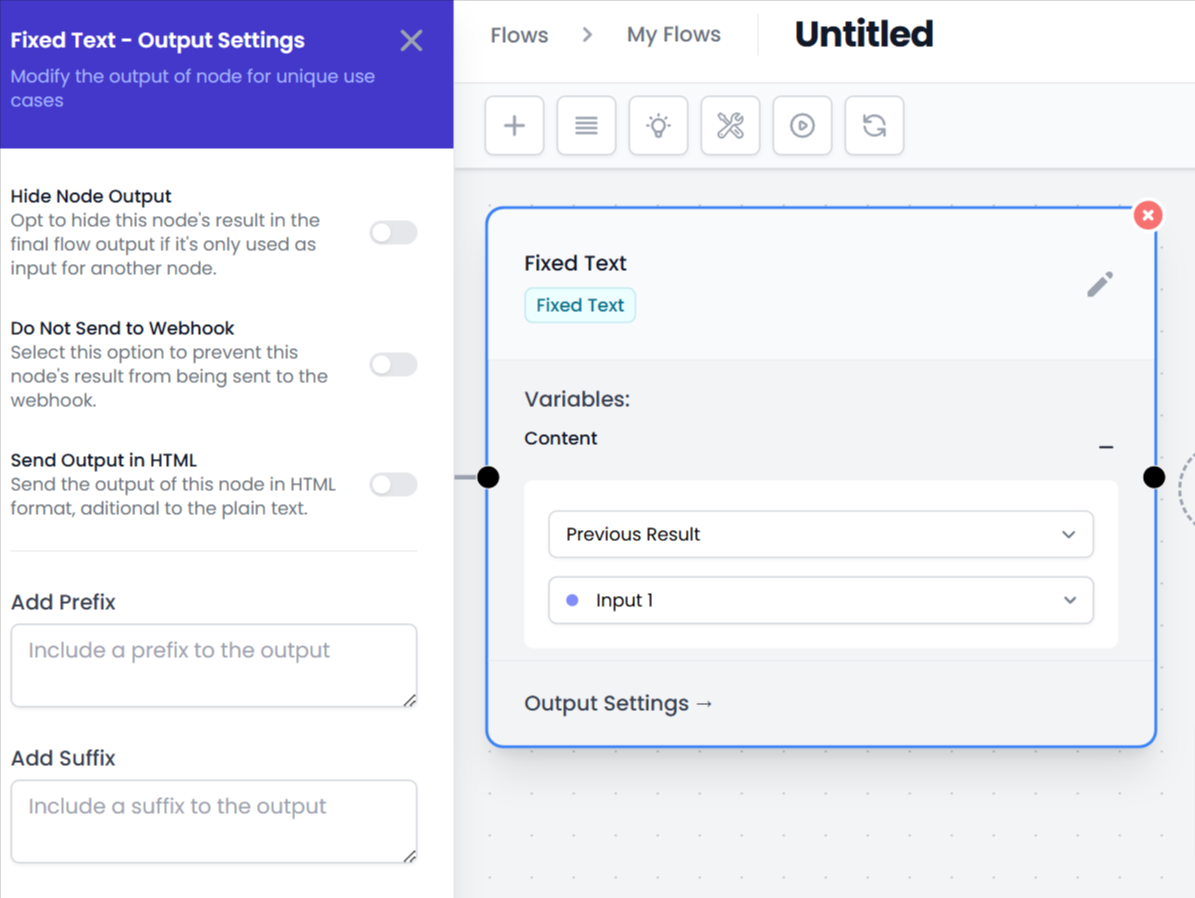
The Fixed Text node includes similar options as other nodes, such as hiding results in the final flow, not sending the result to the webhook, or adding additional prefixes and suffixes. Its configuration looks like this:
While important, these options are repeated for other nodes on the platform, so we won’t go into detail here.
Usage Tips
Here are some suggestions for using the Fixed Text node effectively:
- Create repeatable templates: If you need to use the same text structure at various points in the flow (e.g., formal headers or consent notices), the Fixed Text saves you time and keeps the style unified.
- Combine results from different nodes: Imagine that a Prompt and an Input generate different information. You can gather those results with variables within the Fixed Text to present them in a single block.
- Add formatting or titles: Place titles, subtitles, or separate sections in Markdown. For example, a Fixed Text could look like this:
# My Final Report
This document includes the opinion of {expert} and the data from {analysis}.
With these tips, your flow will gain consistency and be easier to maintain.
Finally, the Fixed Text node allows you to create reusable text sections, while facilitating the integration of real-time information. Its configuration is simple, and it is very useful when you need static content blocks or with slight customizations throughout your flow.


