
Generating images from other images is one of the most striking features of AI Content Labs. In this article, you will learn how to configure and get the most out of the “Image to Image” node.
What is the Image to Image node and what is it for?
The Image to Image node converts or modifies images based on another image or initial set of images. Depending on the model chosen, it can also contemplate the use of a prompt (description of what you want to achieve) or even negative prompts (indications of what you want to avoid). With this node you can:
- Apply enhancements or styles to a photo.
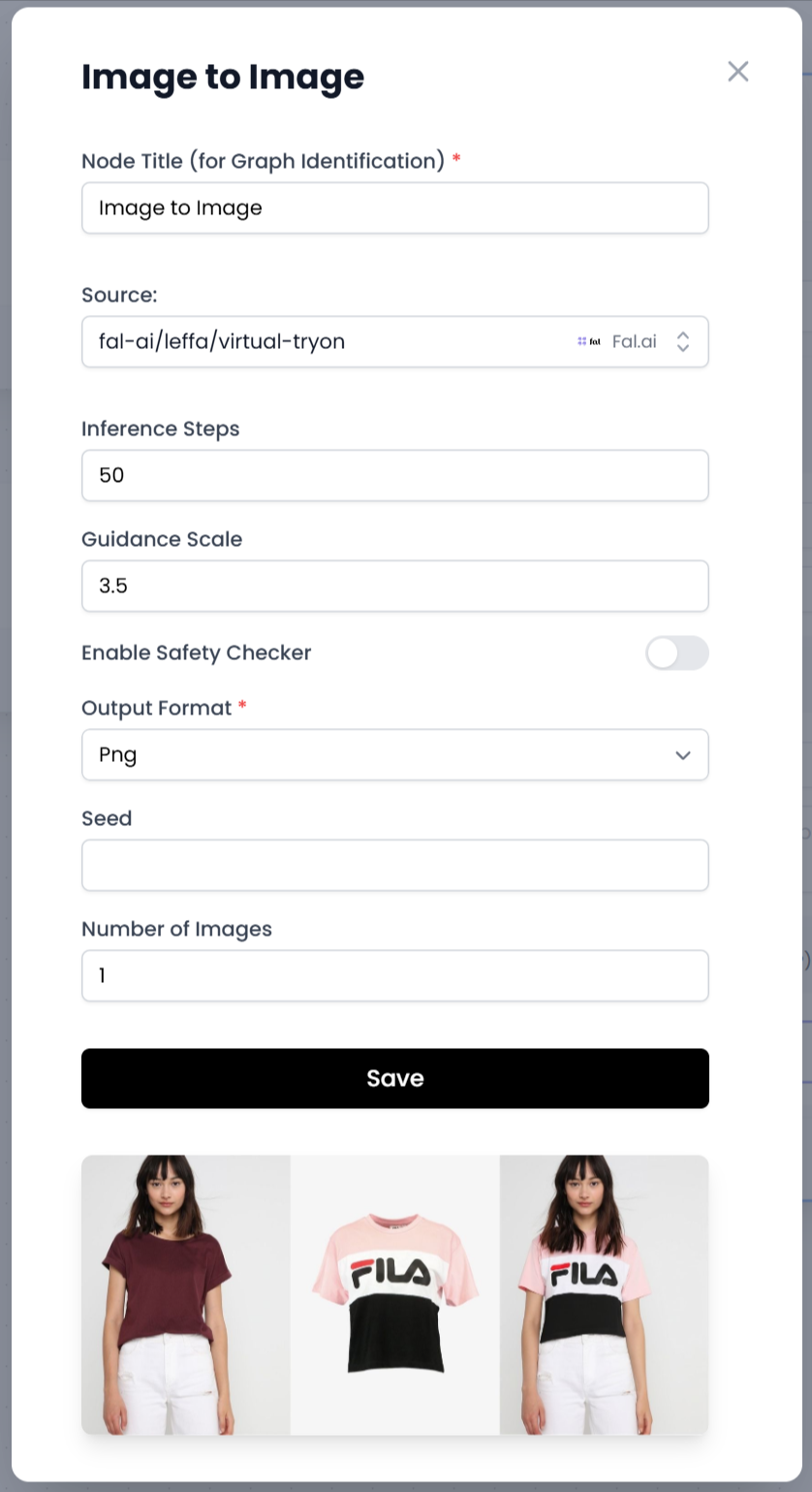
- Combine two images, such as a garment and a person, to simulate how the clothing would look.
- Create variations of an existing image.
- Generate artistic versions or different interpretations of the same image.
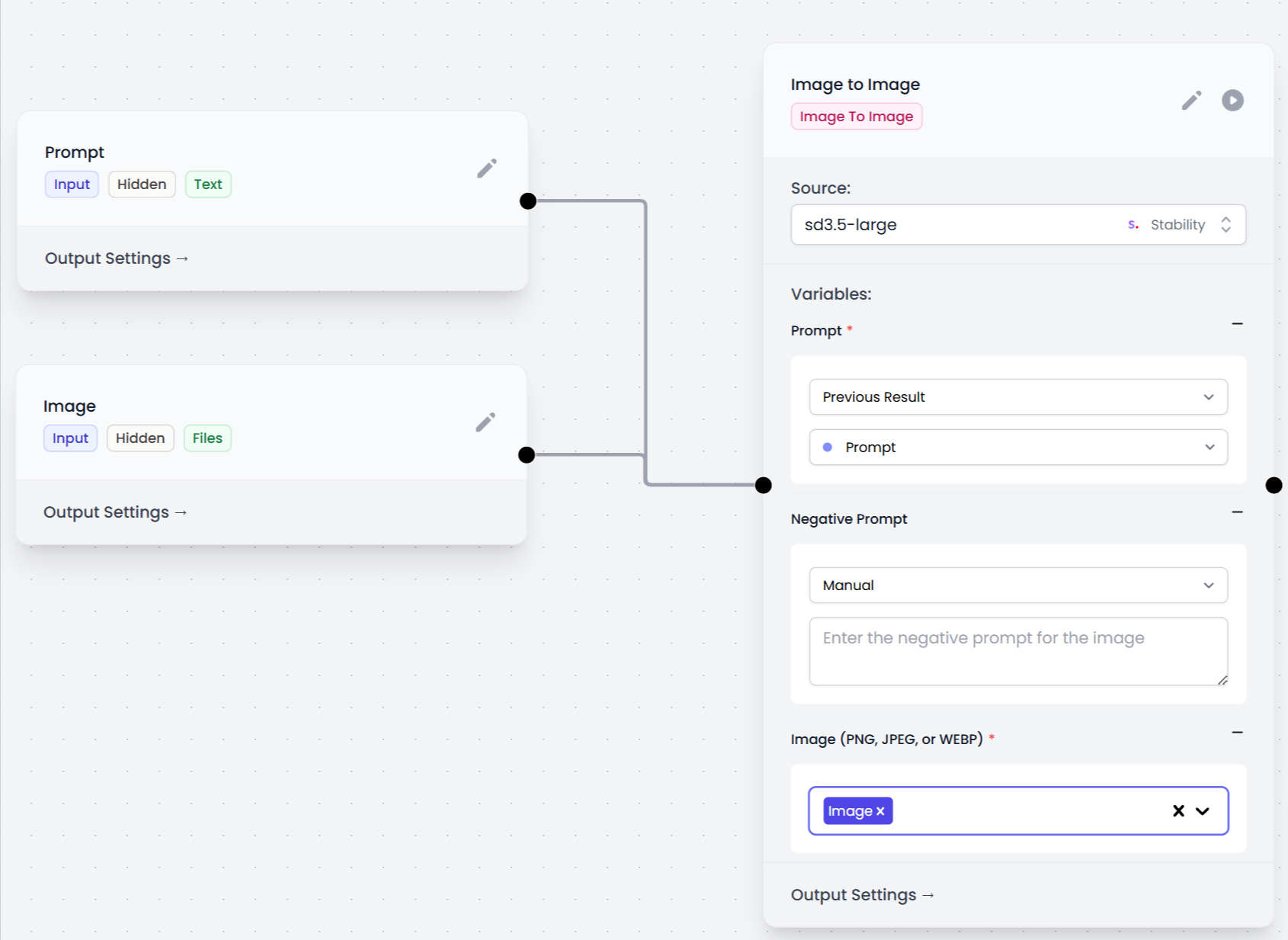
This node can receive the image from an Input node of type file or even from a Text to Image node that produces an image URL. Similarly, if a text contains a valid url, the node can extract and use it as a source.
Configurations
The configuration panel for “Image to Image” shows several options that vary depending on the provider or model you choose. See the list of image-to-image models to see the availability of each one.
Model Selection
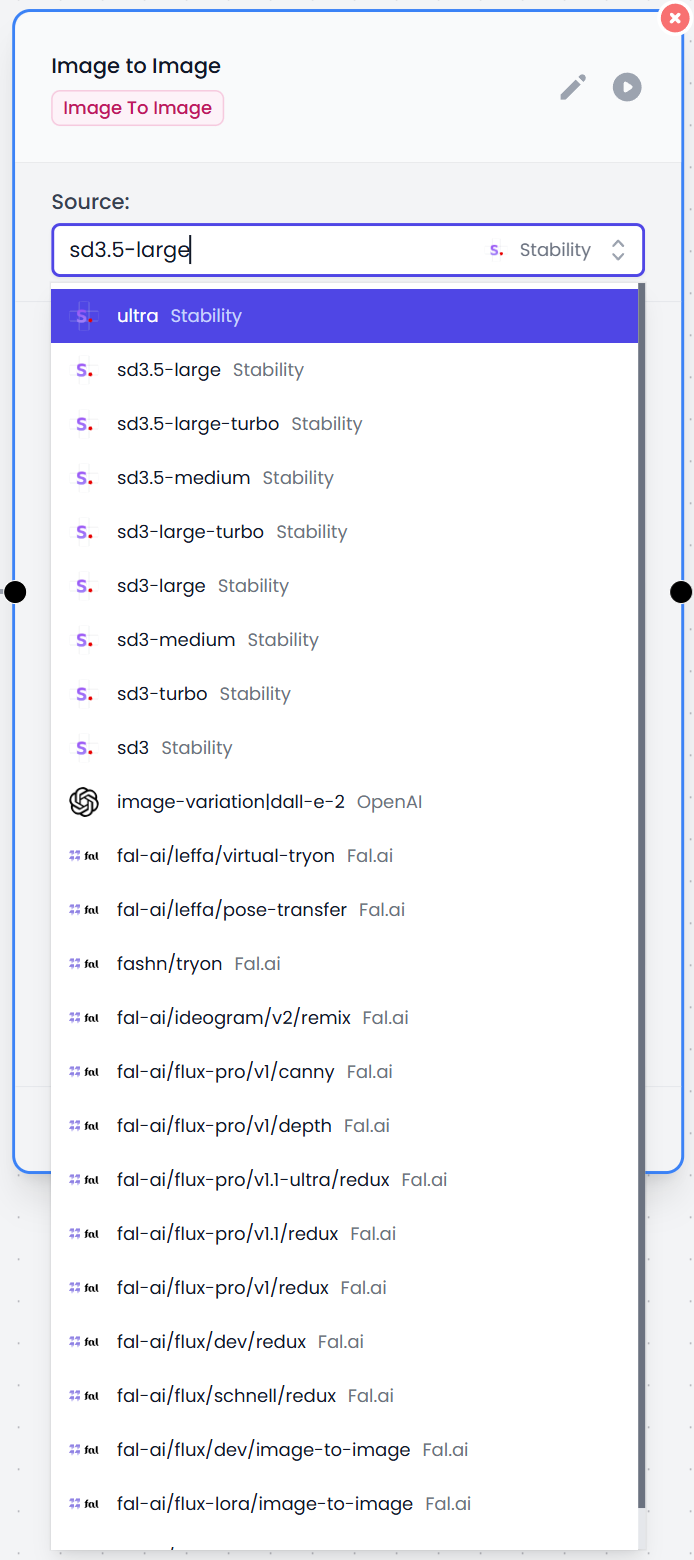
Using the Source option, you choose the technology that will process your image:
- Stability (e.g., sd3.5-large, sd3.5-medium, etc.).
- OpenAI (e.g., image-variation|dall-e-2).
- Fal.ai (includes virtual try-on, pose-transfer models, etc.).
Each model has different characteristics: some require only one image, others need two. There are also models that allow prompt and negative prompt to guide the result; others do not require these descriptions.
Main parameters
Below are the most common fields that may appear:
- Prompt / Negative Prompt: You can manually enter the description of what you would like to obtain and what you want to avoid.
- Image (PNG, JPEG, or WEBP): Indicates the base image or base images to work on.
- Inference Steps: Controls how many iterations the model will make to generate the result. A higher value can improve details (although it will take longer).
- Guidance Scale: Adjusts how faithful the model is to your prompt.
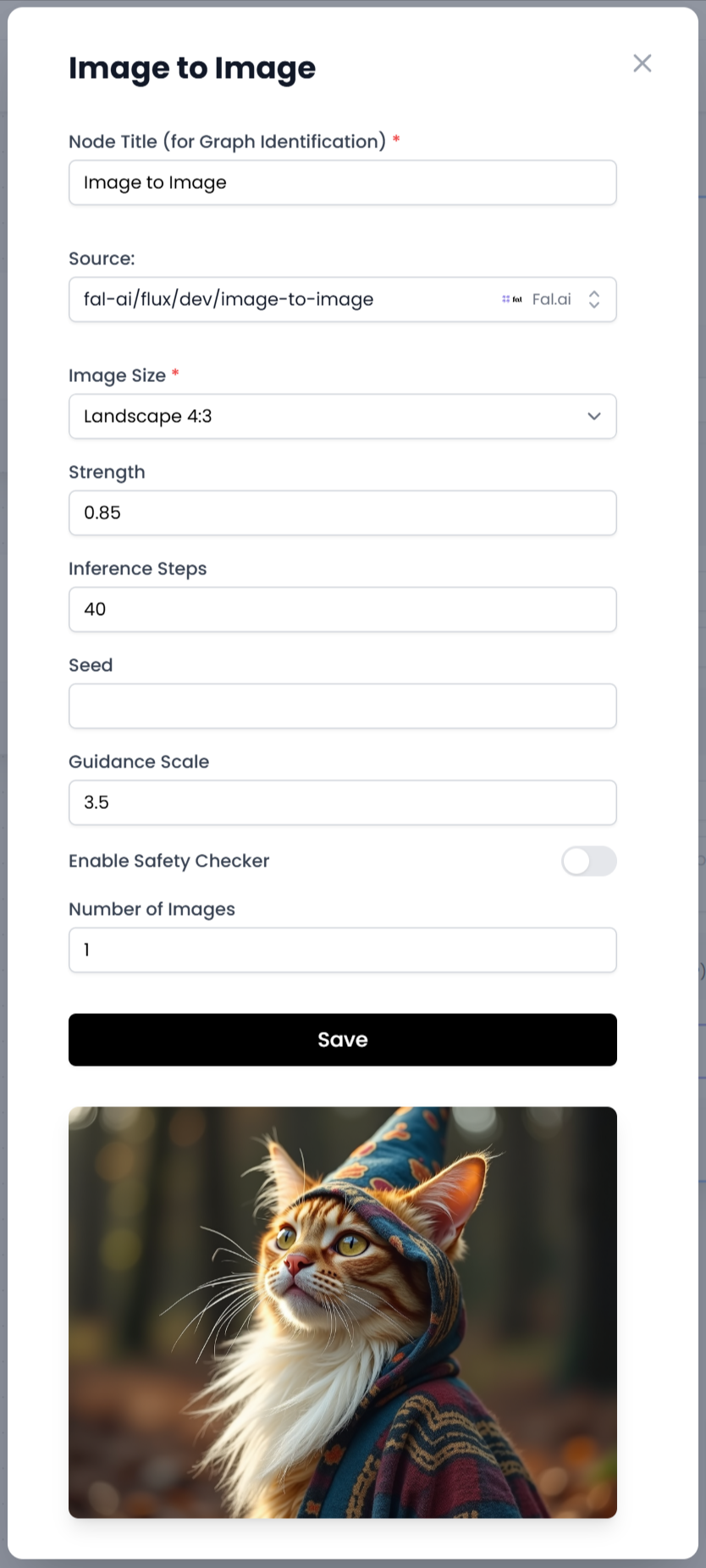
- Strength (in some models): Determines how much of the original image is preserved versus the desired changes.
- Output Format (e.g., PNG or JPG): Output image format.
- Number of Images: Allows generating multiple images with the same configuration.
- Enable Safety Checker: In compatible models, filters sensitive or inappropriate content.
- Seed: Sets a numeric seed so that your results are reproducible.
Output Settings
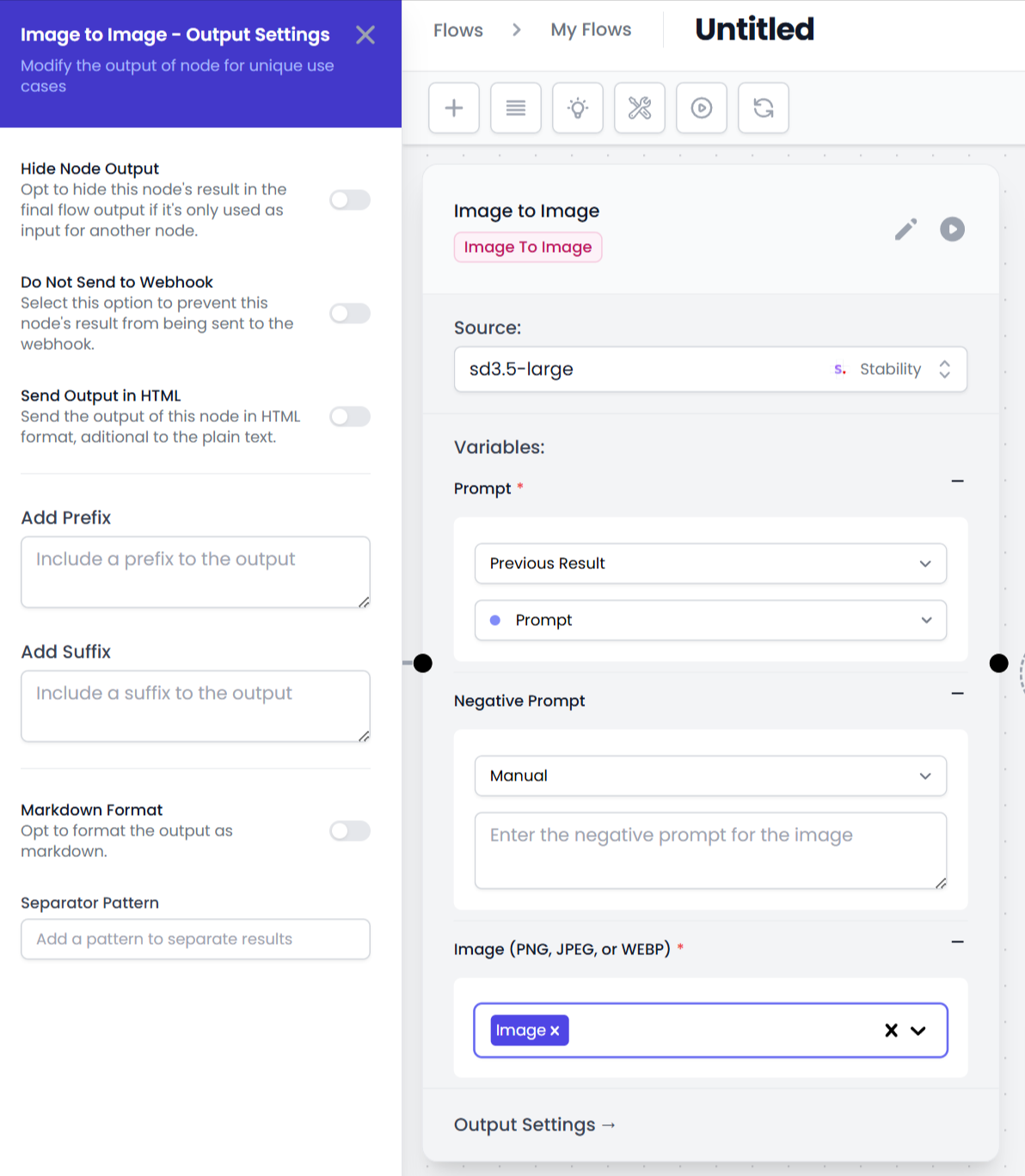
Like other nodes, you will find settings such as Hide Node Output, Do Not Send to Webhook, Send Output in HTML, Add Prefix, and Add Suffix. It also includes these options specific to this node:
- Markdown Format returns the images in a format ready to be embedded in text.
- Separator Pattern is useful if you generate multiple images and then split them with a Text Splitter node.
Usage Tips
- Choose the right model: If your project requires combining garments with models, specifically look for the Fal.ai virtual try-on option. If you just want to reinterpret an existing image, try the Stability or OpenAI models.
- Leverage the power of a previous Text to Image: Sometimes, first generating a base image with a Prompt node and the Text to Image node can open up creative possibilities. Then, use “Image to Image” to refine details.
- Selective Negative Prompt: If a model allows it, take advantage of negative prompt to exclude certain styles (e.g., “do not include colorful backgrounds” or “no text in the image”).
- Experiment with guidance scale and strength: Adjusting these parameters can radically change the result. A lower Strength preserves features of the original; a higher one reinvents the image.
- Control the number of images: Generating more than one can help you make quick comparisons without having to reprocess everything again.
This node is a flexible tool that, combined with other AI Content Labs nodes, offers you multiple creative ways to transform or reinvent your images. We hope this guide helps you seamlessly explore its key features.


