
In this article, we will explore the AI Content Labs Prompt Node, a key component for generating text with artificial intelligence models within your flows, leveraging variables from other nodes and using different configurations to customize the results.
What is the Prompt Node and what is it used for?
The Prompt Node allows you to connect your flow to an AI model to obtain text responses dynamically. For example, you can use an Input Node that receives the user’s query and pass that information to the Prompt to generate a response. Similarly, it is possible to reuse the result in other nodes.

In short, the Prompt acts as the “gateway” to converse with or request information from an AI model, leveraging any data gathered or transformed previously in the flow.
Configurations
System Message and User Message
Double-clicking (or clicking the pencil icon) on the Prompt Node will display its configuration view. There you will find two text fields:
- System: Text that indicates the role or general instructions to the model (“You are an expert assistant”, for example).
- User: The content that the user or the flow provides as the main message (“Write a response”, for example).
Each field can include variables written within braces, for example: {Name}. If the name matches the title of a previous node, the link will be made automatically. Otherwise, you can link it manually in the “Variables” section or from the node panel in the flowchart.
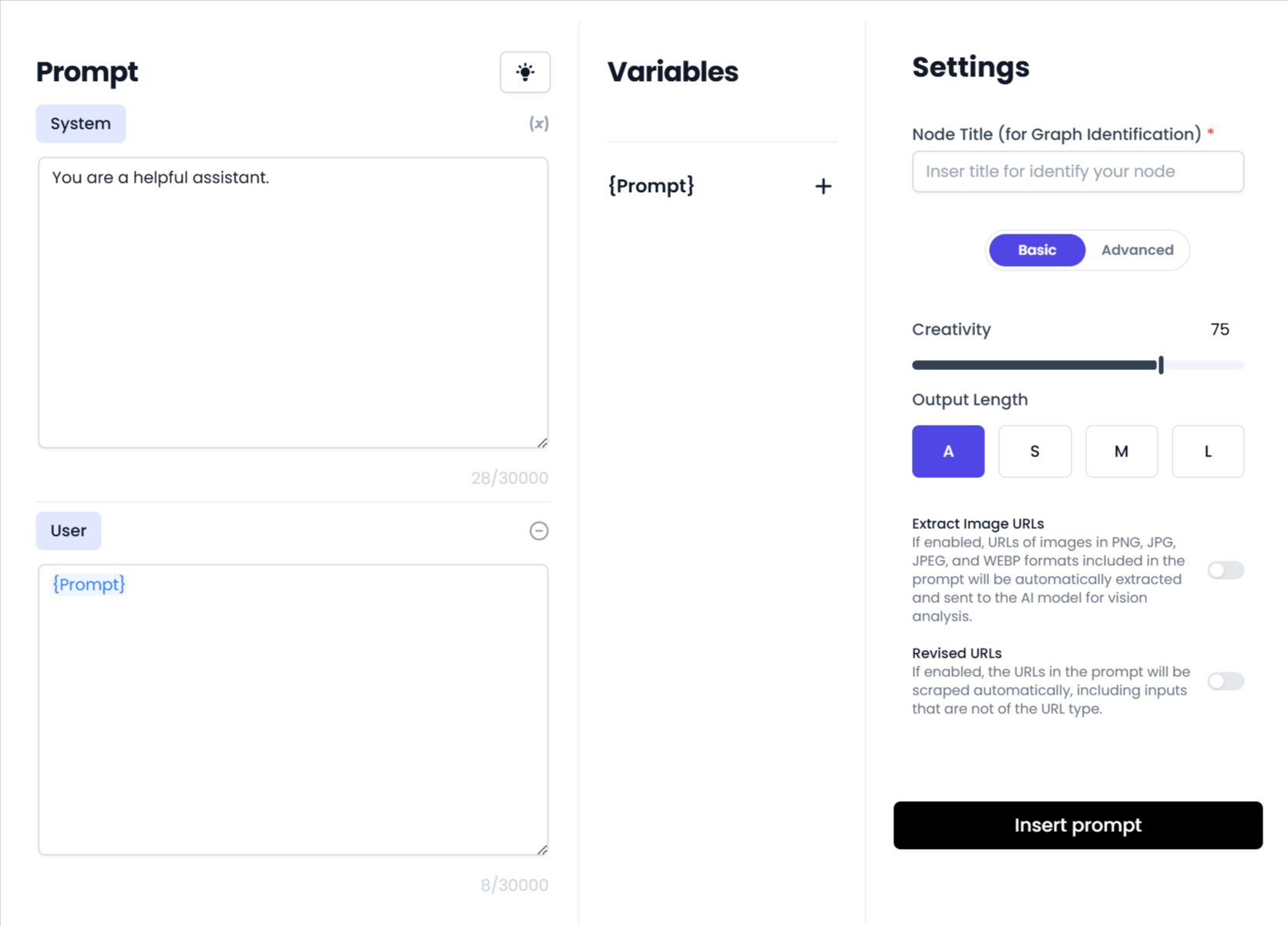
Variables in a Prompt
Every word enclosed in curly braces {} is interpreted as a variable, for example {Prompt}, {PreviousText}, etc. This way, you can propagate information from other nodes. It is mandatory to include at least one variable so that the Prompt obtains content from previous nodes or from an Input Node.
Basic and Advanced Settings
By default, you will see a Basic mode with Creativity (or “Temperature”) and Output Length options that change how the model writes the responses. If you require more customization, choose the Advanced mode, where you can configure:
- Max Output Tokens: How many “tokens” the AI can generate.
- Temperature: Controls creativity. A high value produces more varied responses.
- Top_P: Filters the most probable words.
- Presence Penalty and Frequency Penalty: Adjust the repetition of terms in the text.
- Stop Sequence: Command to interrupt text generation when the model encounters that sequence.

If you are not sure how to use them, it is recommended to keep the default values.
Generate Prompt with AI
The Prompt Node includes an assistant that helps you write the best instruction. The light bulb button opens a box where you write your idea. Then press “Generate with AI” and you will get an optimized draft.

The Node in the Flow
When the Prompt is added to the flowchart, several icons will be displayed:
- Pencil: Returns to the main configuration.
- Play (Test): Opens the window to test the node with concrete data; you can choose several models at once.
- Duplicate: Clones the Prompt Node.
- Tools (gear): Selects the extra tools.
- Output Settings: Output options (prefixes, suffixes, send as HTML, etc.).

Model Selection
In the configuration, you will find different AI models available. Each model may display icons indicating compatibility with:
- Chip: Supports tools.
- Eye: Can process images.
- Circle: Supports web searches natively.

You can view our list of available models here.
Using Multiple Models at the Same Time
By clicking “Test”, you can perform simultaneous tests with different engines, see their results side by side, and compare which one best suits your needs.

Tools
Some models are capable of running Tools that offer additional functions, such as searching the web, creating graphics, etc. You can activate or deactivate them according to your subscription or needs. The complete list is available here: AI Content Labs Tools.

Output Options
Finally, the Prompt Node has different Output Settings that allow you to decide how the results are delivered:
- Hide Node Output: Hides the Prompt’s response in the final result of the flow (useful if it is only an intermediate step).
- Do Not Send to Webhook: Prevents this result from being sent to the webhook even when the flow has webhooks activated.
- Send Output in HTML: Converts the response to HTML format.
- Add Prefix and Add Suffix: Adds text before or after the model’s response.

Usage Tips
- Reuse information: Link the Prompt with variables from other nodes, for example, an Input Node with the user’s name
{Name}, to personalize responses. - Combine with other nodes: Use Text Splitter or Text Transformer to process words, phrases or results before sending them to the Prompt.
- Test different models: Some offer better creativity, others greater accuracy. Perform tests to see which one fits your use case.
- Take advantage of the Tools: Activate only those you need; for example, a web search Tool if you require real-time data.
- Customize the output: If you don’t want the end user to see the raw response, you can hide it, send it via webhook, or add prefixes like “Response:”.
This way, your flows will have fully integrated Prompts, ensuring that each variable and tool is configured according to your objectives. This guarantees more accurate and tailored responses for your project.


