
This article will show you how to use the Render Engine node to transform content (text, code, or markup) into images or PDF files within AI Content Labs. With this node, you can generate ebooks, reports, or visually appealing versions of your information, customizing details such as margins and page orientation.
What is the Render Engine node and what is it used for?
The Render Engine node allows you to convert HTML, Markdown, or other formats into PDF files or images. In its current version, it offers four main options:
- HTML to Image
- HTML to PDF
- Markdown to PDF
- Merge PDFs
These options are expected to expand over time to cover more formats and uses. The node is useful when you want to present final content generated by other nodes (for example, text created with Prompt or text processed with Text Splitter) in a more elegant and easy-to-share format.
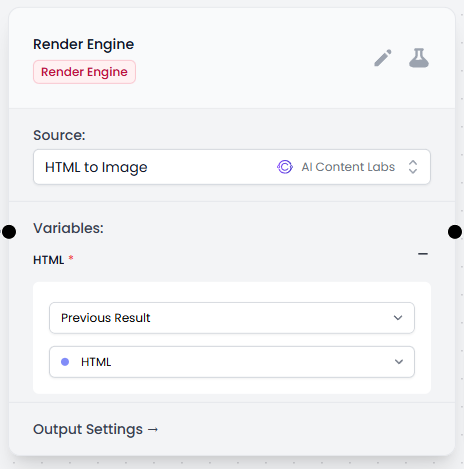
Each Source option defines how the node will process your content. For example, “HTML to Image” will transform your HTML into an image and “Merge PDFs” will merge several PDF files resulting from other steps in the flow.
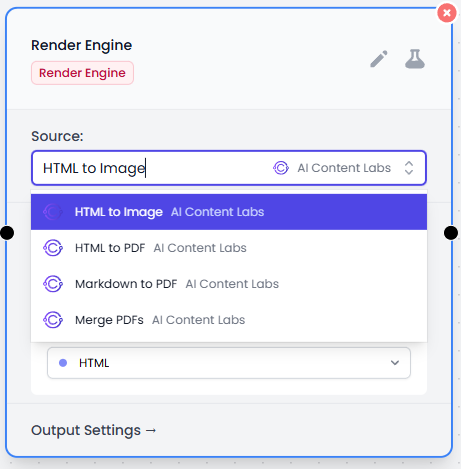
Settings
Main Configuration
When you select the Source option (HTML to PDF, Markdown to PDF, etc.), you will see fields to adjust parameters. These may vary depending on the choice:
- HTML to PDF allows you to define:
- Margins (top, bottom, left, and right).
- Paper size (width and height).
- Orientation (portrait or landscape).
- Scale to print the content (in case you want to make it larger or smaller).

With these options, you can control the final result, for example, by setting 1-inch margins to obtain a more traditional layout when creating an ebook-type document.
Output Settings
In the Output Settings panel, aspects related to the final presentation of the result and its delivery are defined.
Some common options include:
- Hide Node Output: hides the result of this node in the final presentation of the flow.
- Do Not Send to Webhook: prevents the result from being sent to the webhook.
- Send Output in HTML: sends the result in HTML format in addition to plain text.
- Add Prefix / Add Suffix: adds text before or after the result.
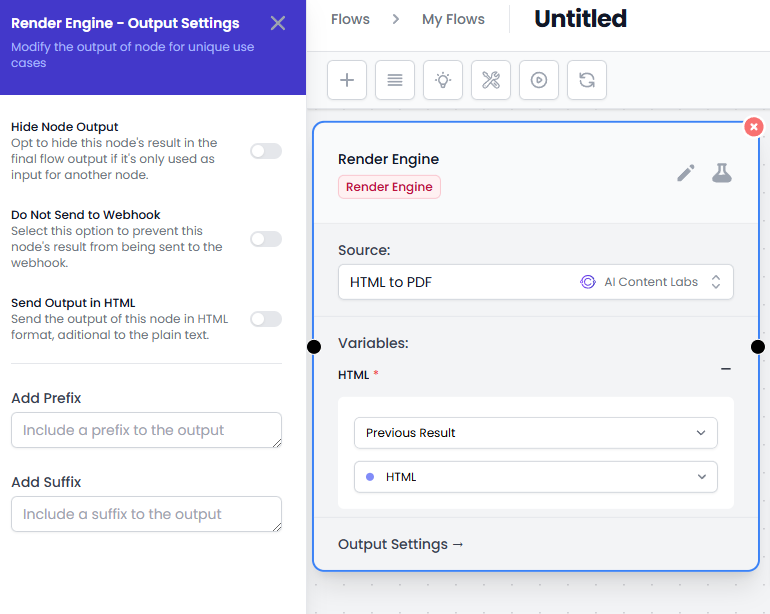
These settings are similar in other nodes, so you only need to configure them according to how you want the result to appear or be transmitted.
Usage Tips
- Create custom ebooks: Generate content with a Prompt node (for example, a narrative text), apply style or divisions with Text Splitter and convert it to PDF with the Render Engine.
- Transform Markdown to elegant PDFs: If someone provides you with content in Markdown, take advantage of the Markdown to PDF option to preserve the format and styles.
- Merge multiple documents: Use Merge PDFs to consolidate different contributions (such as separate reports from other nodes) into a single final document.
- Adjust margins and paper size: Play with the configuration fields so that your final document conforms to printing standards or specific formats that you need.
Finally, the Render Engine node becomes a powerful tool within any flow, as it gives you the freedom to present your results professionally and with parameters that adapt to different needs.


