
In this article, you will learn how to use the Text Merger node in AI Content Labs to combine multiple text fragments into a single block. You will see its main functions, its settings, and some tips to get the most out of it.
What is the Text Merger node and what is it used for?
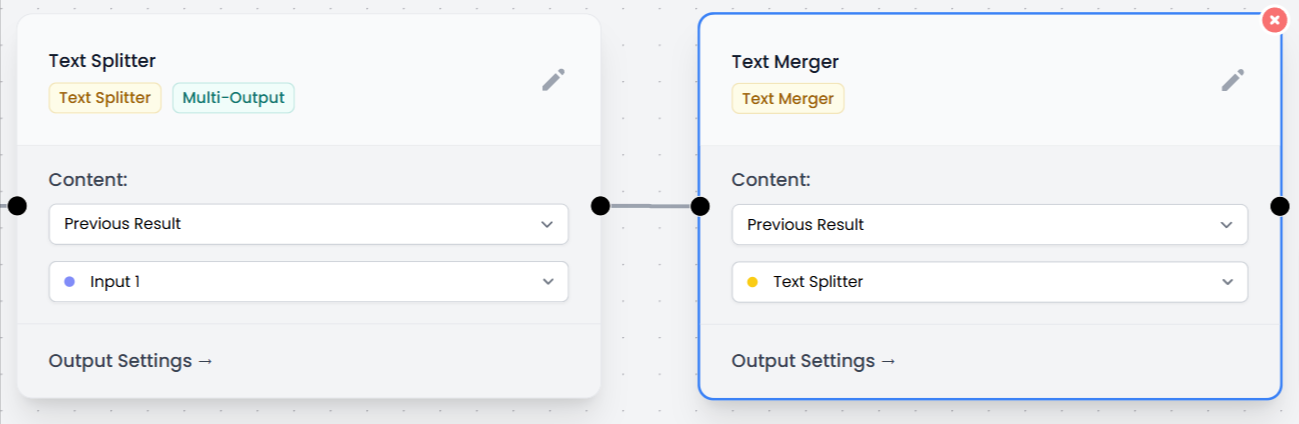
The Text Merger node allows you to gather the results from other nodes that generate multiple outputs into a single text. A very common example is the Text Splitter node, which divides a text into multiple parts. In the end, the Text Merger reintegrates them to treat them as a single block.
For example, if you use a Text Splitter to break down several search terms and then search for information for each term thanks to other nodes (such as Web Search or Web Scraper), you can use the Text Merger node to gather the results and pass them to a Prompt node that makes a global summary.
Settings
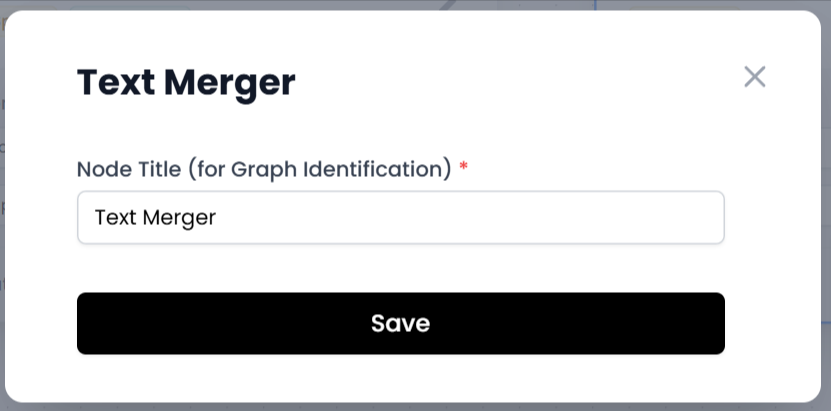
Node Title
When you add a Text Merger node to your flow, the first thing you can configure is the title. This name helps you identify it within your diagram.
Output Options
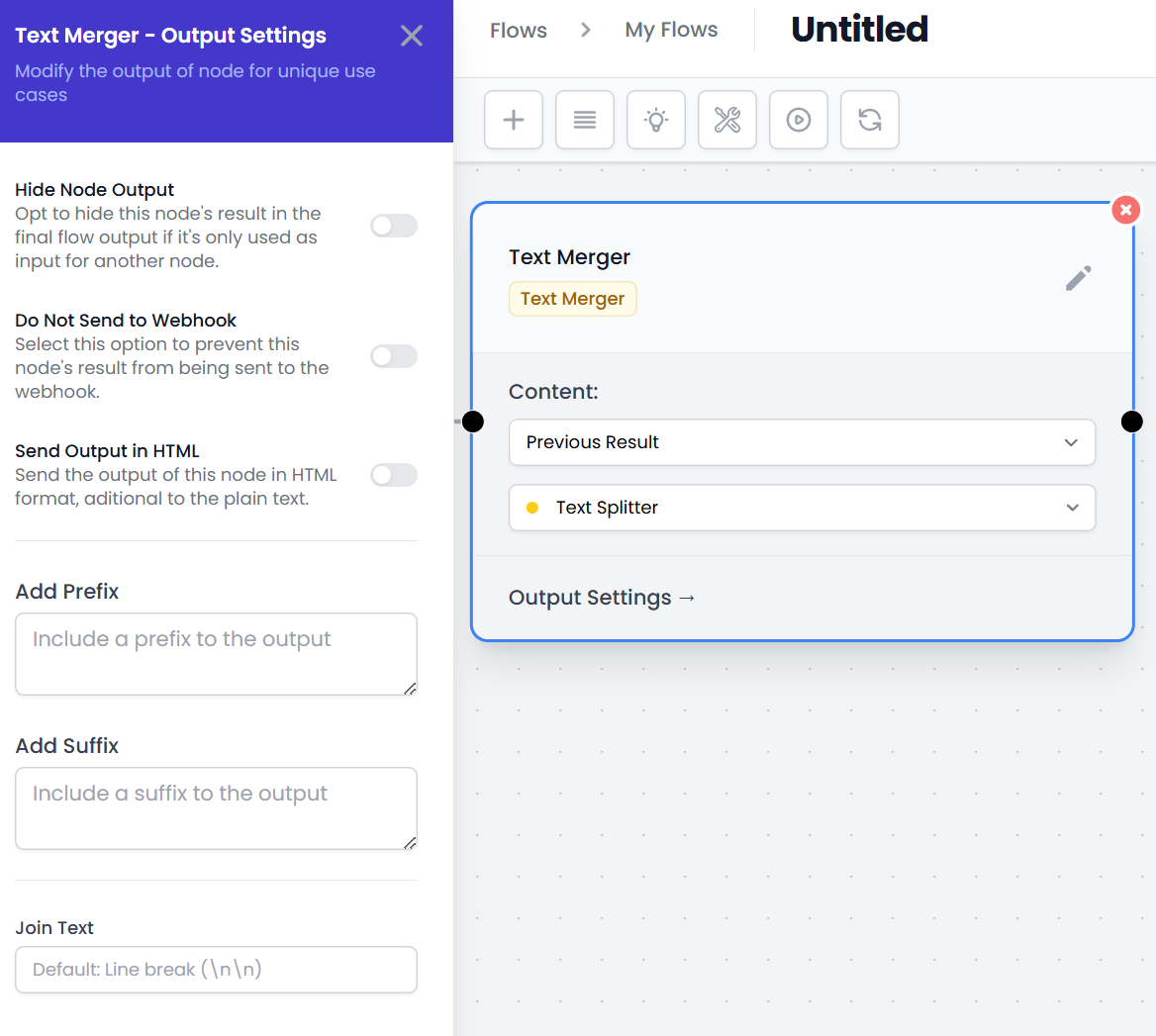
The “Output Settings” panel offers several options to adjust how the data generated by the node is delivered. These options include:
- Hide Node Output: If you activate this option, the unified content will not appear in the final result of the flow. It is usually used when the node is used only as an intermediate step.
- Do Not Send to Webhook: When enabled, it prevents the content of this node from being sent to a webhook (if your flow is configured to send outputs to a webhook).
- Send Output in HTML: Generates the final content also in HTML format, in addition to plain text.
- Add Prefix / Add Suffix: These allow you to add a prefix or suffix text to each unified block, ideal for labeling the results or separating them.
- Join Text: Here you define the joining pattern that puts the different fragments together. By default, a double line break (
\n\n) is used.
Usage Tips
- Identify the node clearly: Change the node title to something descriptive (for example, “Merge Splitter Results”). This is very useful when your flow gets bigger.
- Combine searches: If you have several search terms broken down by a Text Splitter, unify them to create a global report or summary with the help of a subsequent Prompt.
With the Text Merger node, you can combine multiple outputs into a single result within AI Content Labs and facilitate processes such as summaries, concatenation of information, or data preparation for other nodes. Its versatility will allow you to keep the workflow organized and ready for the later stages of your project.


