
In this article, you will learn how to use the “AI Video” node of AI Content Labs to generate or process videos from text, images, or both, in a simple and flexible way.
What is the AI Video node and what is it for?
The AI Video node allows you to configure artificial intelligence models focused on video creation. With a simple text prompt, an image, or even audio (depending on the selected model), you can transform your ideas into a short video. This node is very useful for:
- Generating animated clips.
- Creating videos from a script and/or an image.
- Customizing the duration, aspect ratio, and visual style.
The available models vary depending on the provider. You can consult the list of available Video AI models to see the current options.
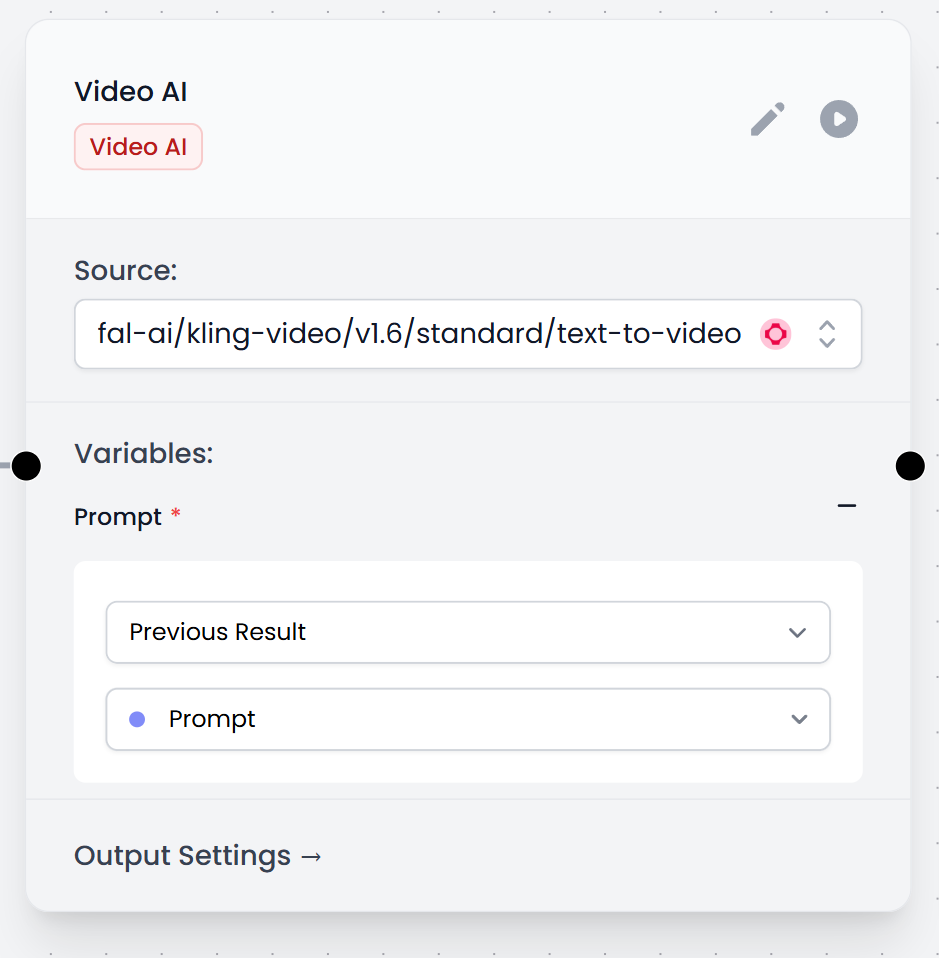
When the process finishes, you will get a link to the generated video, which is kept for 7 days.
Configurations
Node Title
Gives it a descriptive name to clearly identify it in your flow (“Video AI”, “Trailer Generator”, etc.).
Source
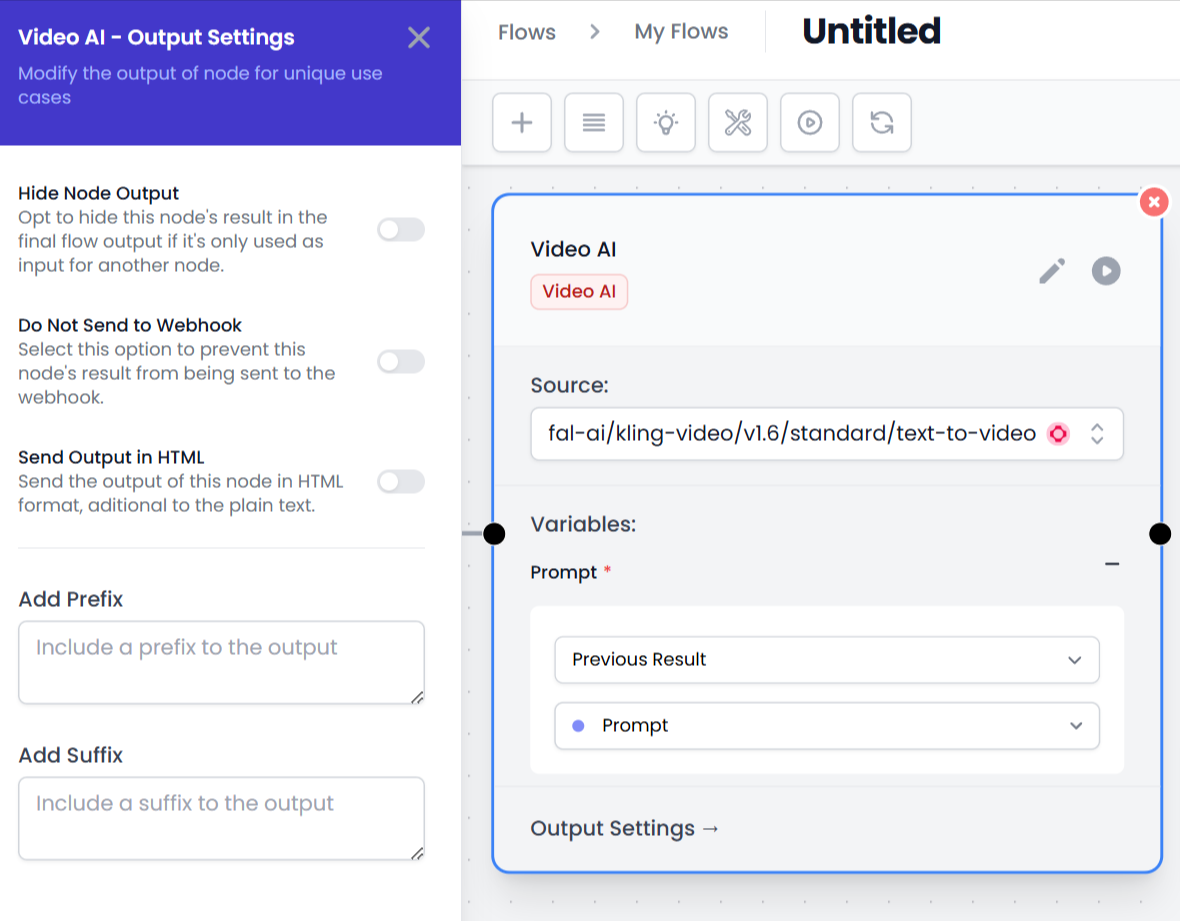
Here you select the model or provider you want to use. The dropdown list will show you several options. Choose the one that meets your needs for duration, style, language, etc.
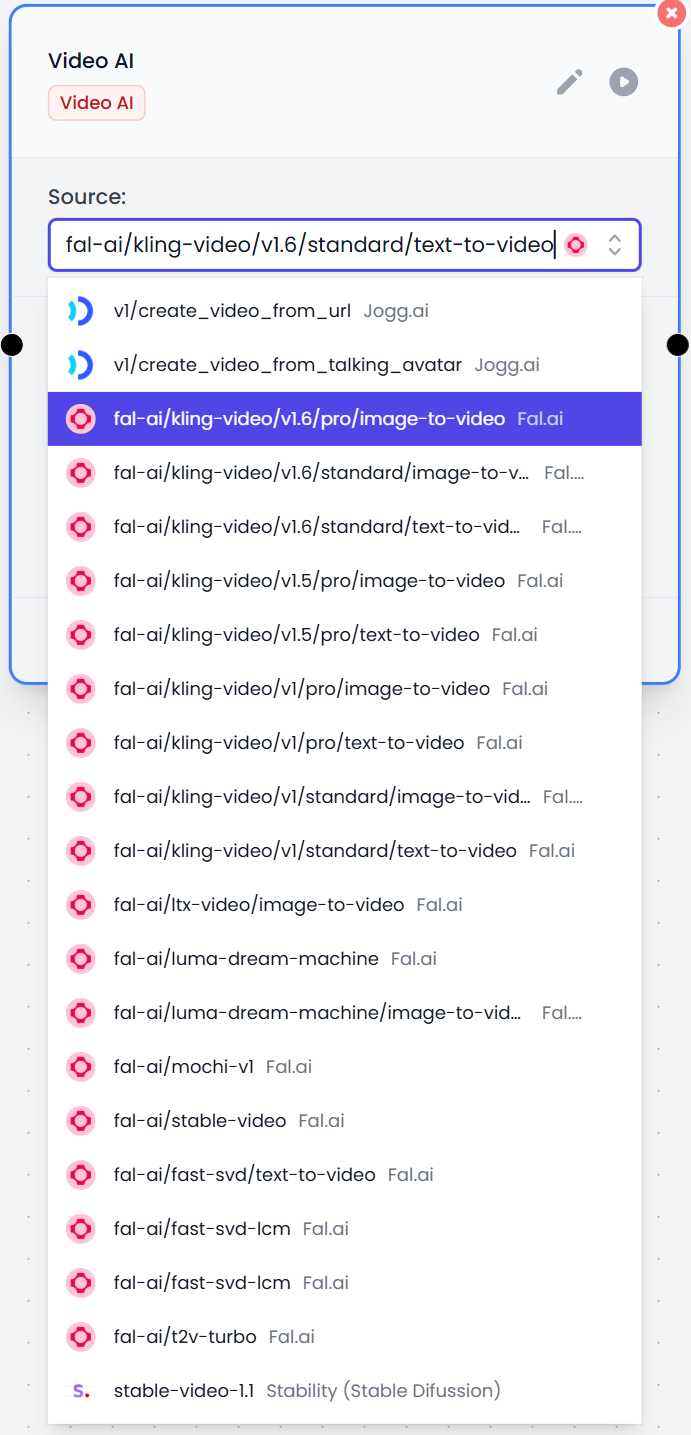
Variables
Depending on the model, you will see different fields:
- Prompt: text that describes what you want in the video (for example, “futuristic landscape with neon lights”).
- Image: if the model requires it, here you can drag or link an image from another node.
- Audio: in some models, you can add or generate audio.
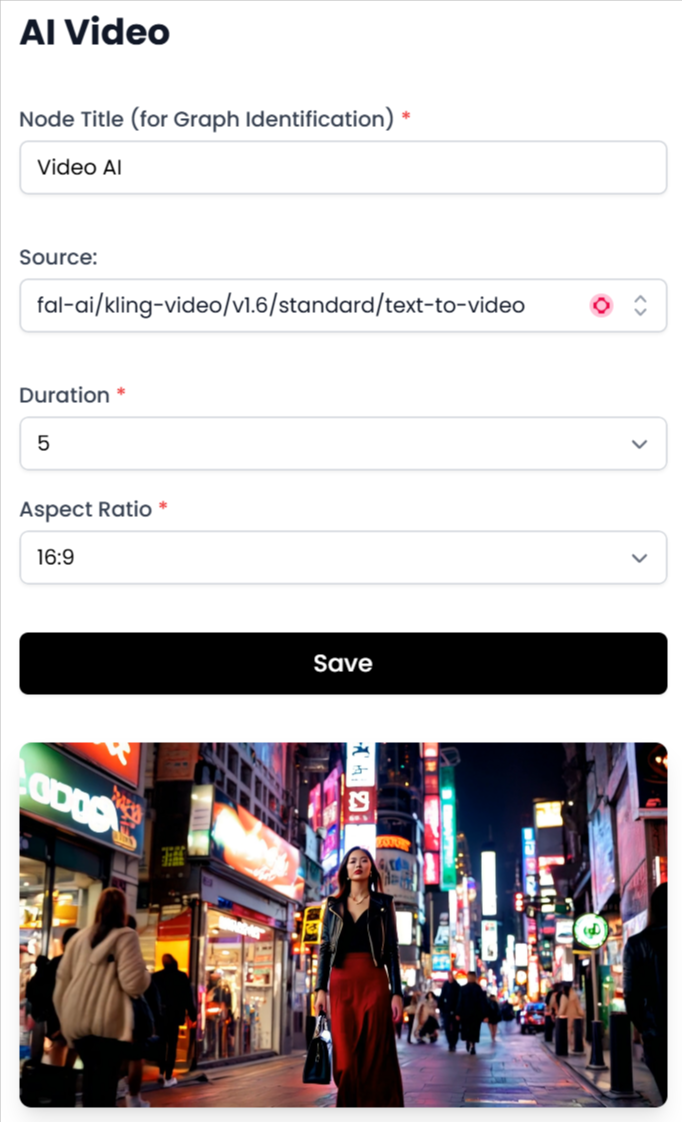
Video Parameters
- Duration: indicates the length of the video (in seconds).
- Aspect Ratio: aspect ratio of the video (for example, 16:9, square, vertical, etc.).
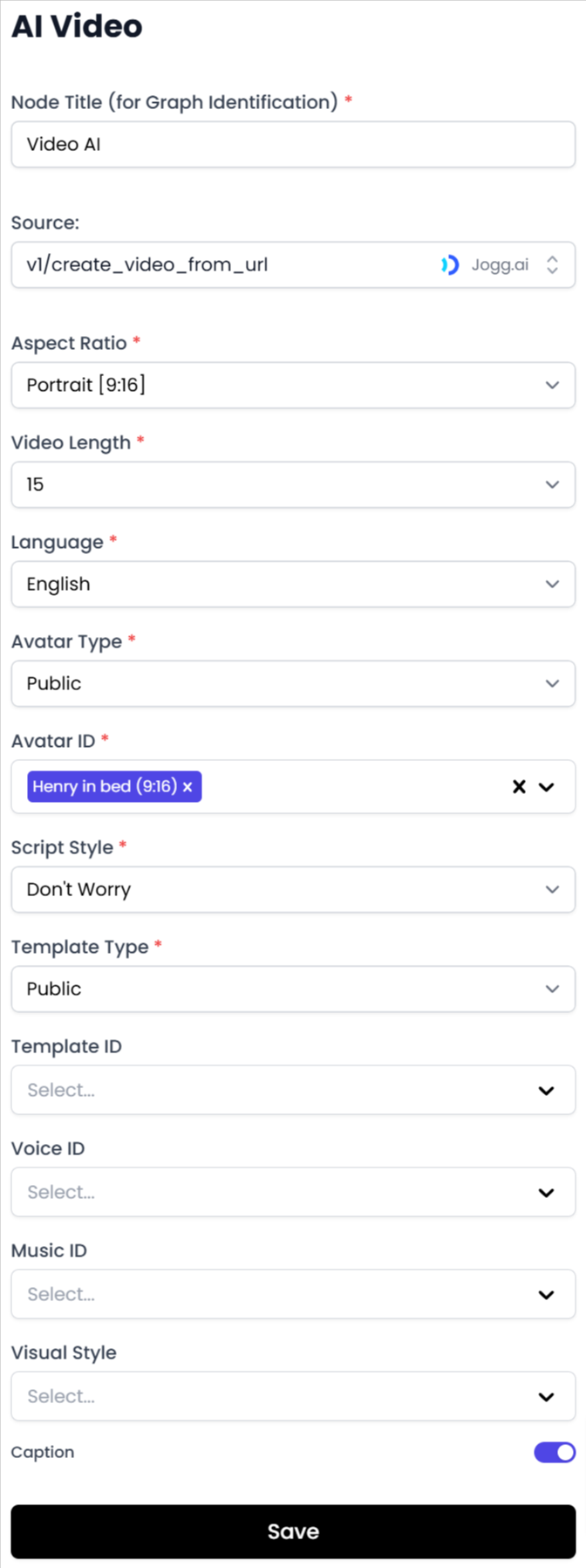
- Language, style, and other options: in certain providers, you can define the language, visual style, voice, music, or specific animations you want to apply.
- Avatar or template: in providers that support avatars, choose character, voice, style, etc.
Output Settings
In the “Output Settings” section, you will find options common to all nodes, such as hiding the result in the final flow or not sending it to the webhook; you can also prefix or suffix the text or return it in HTML.
Usage Tips
- Connect a Prompt node: if you want to get the text dynamically, link the output of your Prompt node as a variable in “Prompt”. This way, your video is generated from the AI-generated description.
- Use an Input node: if you want to involve the user in the flow, the Input node can ask the user for the exact phrase to create the video.
- Combine with Fixed Text node: if there is a standard message that you always want to use in the background, configure it in the Fixed Text node and connect it to your video node.
- Integrate other sources: for example, with the Web Scraper node, you could get images from a site and convert them to video automatically.
- Check the estimated time: if the video is very long, the process could take longer to complete. Adjust the duration carefully.
Create logical sequences that combine text, images, and other AI nodes. This way you can automate creative processes and offer more complete experiences in your flows.
To close, the AI Video node is a powerful tool for generating multimedia content automatically. It invites you to experiment with different models and configurations, whether starting from text, images, or both, and to integrate it with other nodes that complement your workflow.


