
In this article, you will discover how to configure and leverage the Web Search node to obtain search engine results (SERP) within your flows in AI Content Labs. You will learn how to define parameters such as search source, language filters, dates, and more, in order to optimize your results and integrate them with other nodes on the platform.
What is the Web Search node and what is it used for?
The Web Search node allows you to perform queries to different search result providers, such as Google, Google Images, or other compatible services. This node responds with the links or relevant information it finds on the web, giving you the possibility to process that data in your flow, for example, extracting text with a Web Scraper or efficiently dividing it with a Text Splitter.
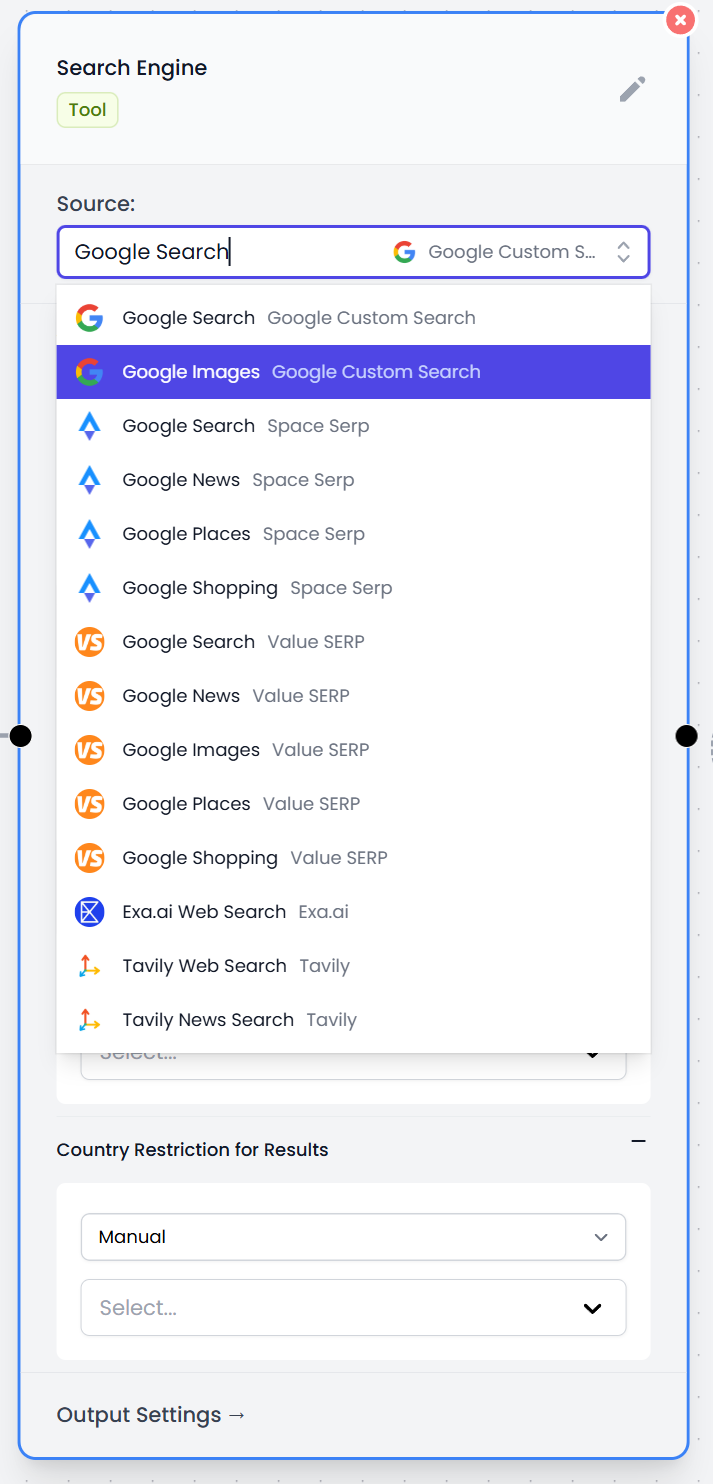
By using the Web Search node you can:
- Search for general information to feed other nodes.
- Filter data by language, country, or publication date.
- Integrate the results with text generation or image.
Configurations
Below, you will see some key configurations of the Web Search node. Although some parameters depend on the chosen provider, the main interface is quite similar.
Main Settings
1. Source
Select the search platform, such as Google Search, Google Images, Tavily Web Search, among others.
2. Search Term
You can enter your search directly or use a previous result from another node to perform chained searches. For example, you could use the output of a Prompt or a Fixed Text as your search term.
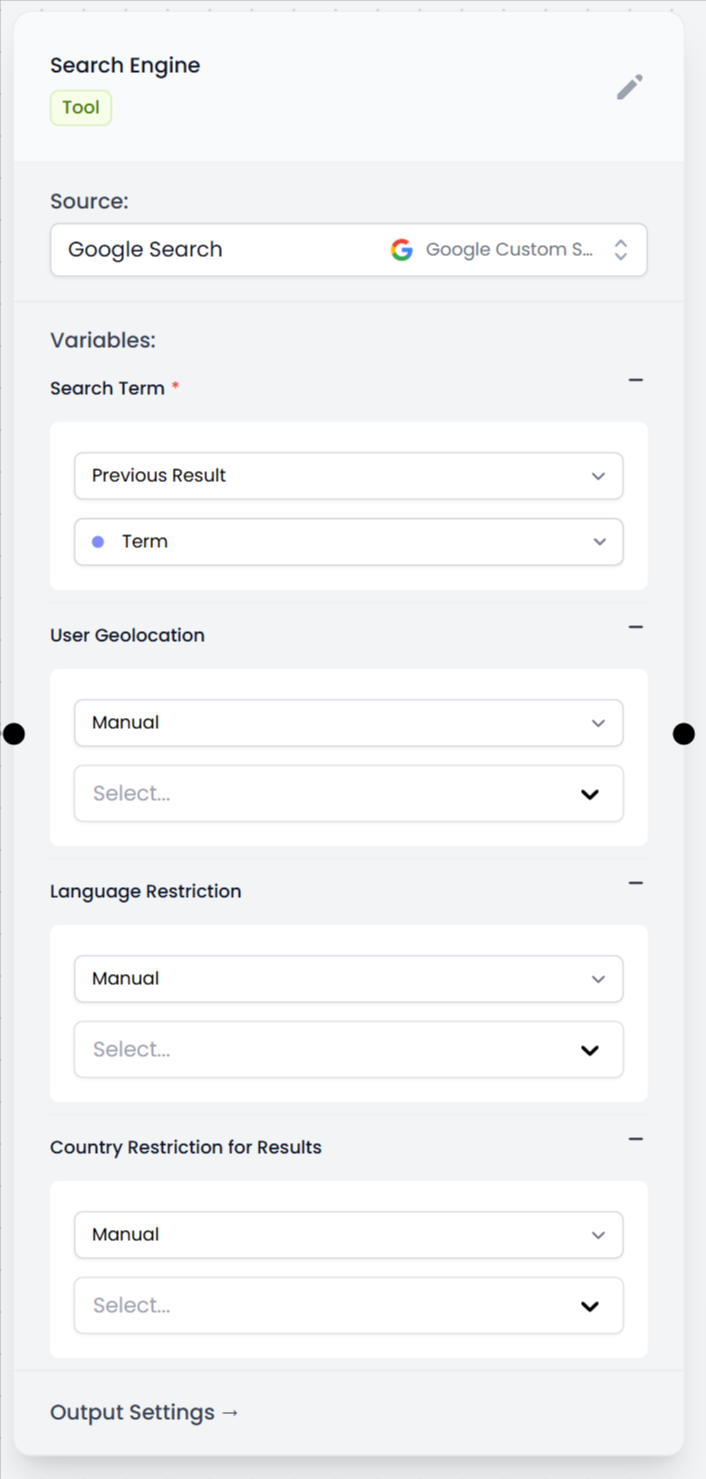
3. Geolocation and Language Restrictions
- User Geolocation: Manually choose the region to optimize results based on a specific country or place.
- Language Restriction: Restrict the search to a specific language.
- Country Restriction: Limit the results to a specific country.
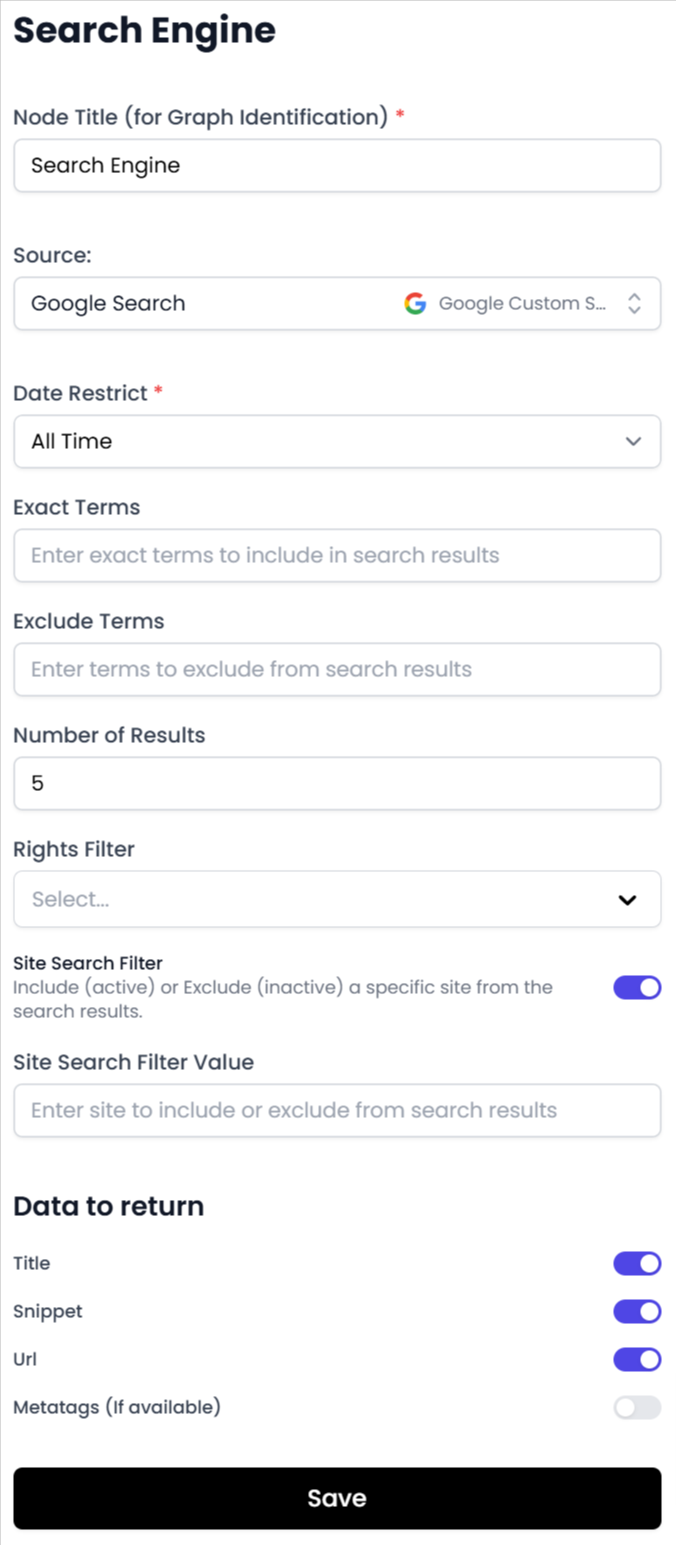
4. Date Filters and Exact or Excluded Terms
Depending on the provider, you can choose a time range (for example, All Time, Last 24 hours, etc.) and specify:
- Exact Terms: Mandatory keywords.
- Exclude Terms: Words you do not want in the results.
- Rights Filter: To choose results with specific usage licenses (only with certain providers).
5. Domain and Specific Site Filters
Some providers allow you to include or exclude specific domains from the results (for example, “only search in exampledomain.com”).
Data to Return
Depending on the provider, you can configure what information you will get in the response, such as:
- Title and Description
- URL
- Metadata (if available)
- Clean HTML Content
- Images
This makes it easy to send data to other nodes, such as the Text Splitter to continue processing the information.
Output Settings
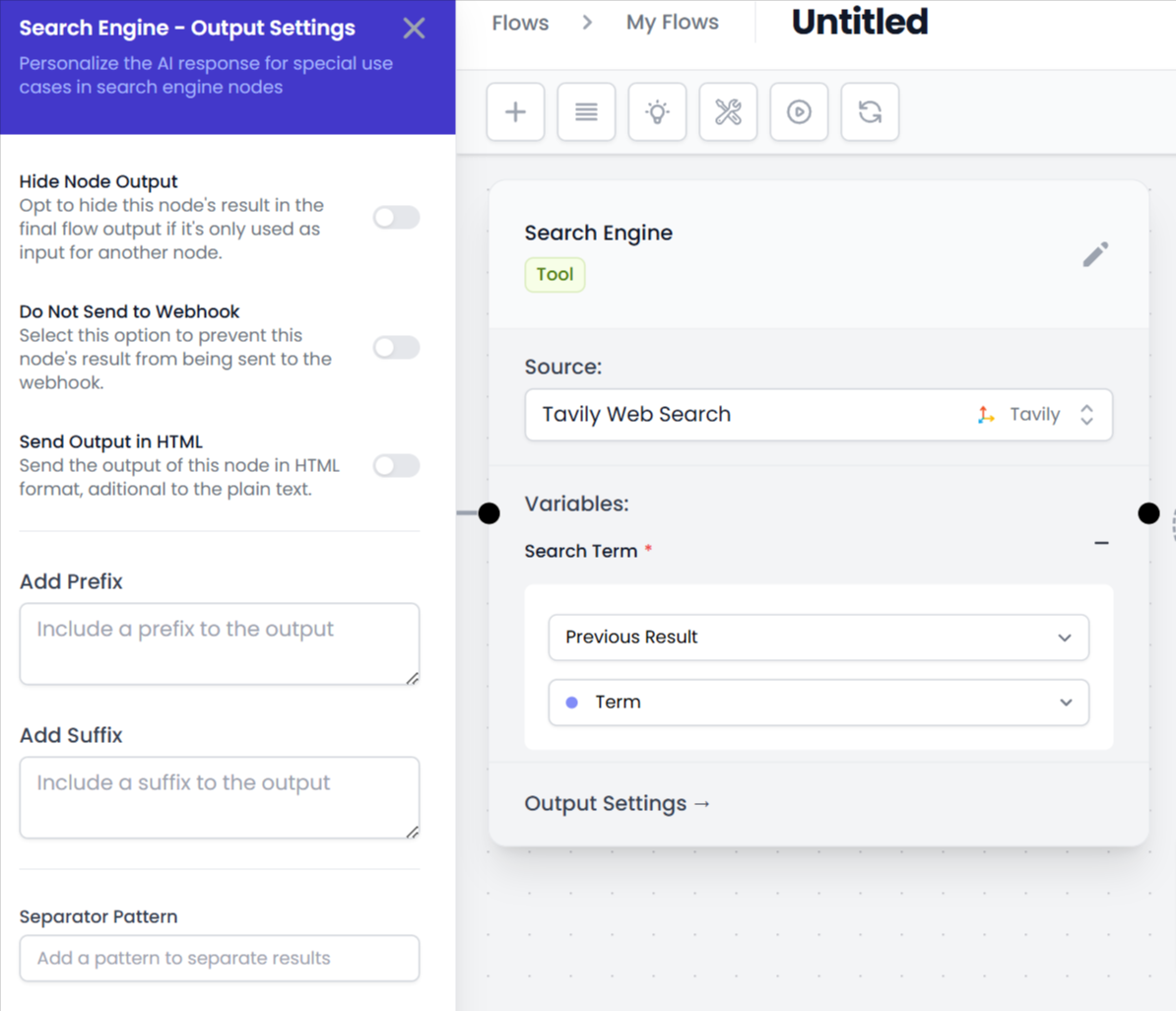
The Web Search node, like other nodes, has output customization options that include:
- Hide Node Output: Hide the result in the final view.
- Do Not Send to Webhook: Prevent the output from being sent to a webhook.
- Send Output in HTML: Send the output as HTML in addition to plain text.
- Add Prefix / Add Suffix: Add text before or after the result.
- Separator Pattern: Very useful if you then want to split the results with a Text Splitter or use a Web Scraper for specific content.
Usage Tips
- Combine with a Web Scraper: If the Web Search node gives you links, use them in a Web Scraper to extract the content of those pages.
- Process with a Text Splitter: If you get a lot of information, use a Text Splitter to divide the output by the Separator Pattern and address each result independently.
- Filter by region: If you are looking for news or results specific to a location, use the Country Restriction or User Geolocation to narrow down your search.
- Choose your ideal source: Try the different options, such as Google Search, Google Images, or Tavily Web Search, depending on the type of content you need.
- Generate ideas for prompts: Use the data obtained from the search to feed a Prompt that refines texts or creates content, using the keywords found.
This flexibility makes the Web Search node a fundamental piece in scenarios where you need fresh information to guide other nodes in your flow.
By leveraging these configurations and tips, you can create highly customized flows that collect data from the web and process it with the other nodes available in AI Content Labs, getting the most out of each search.


